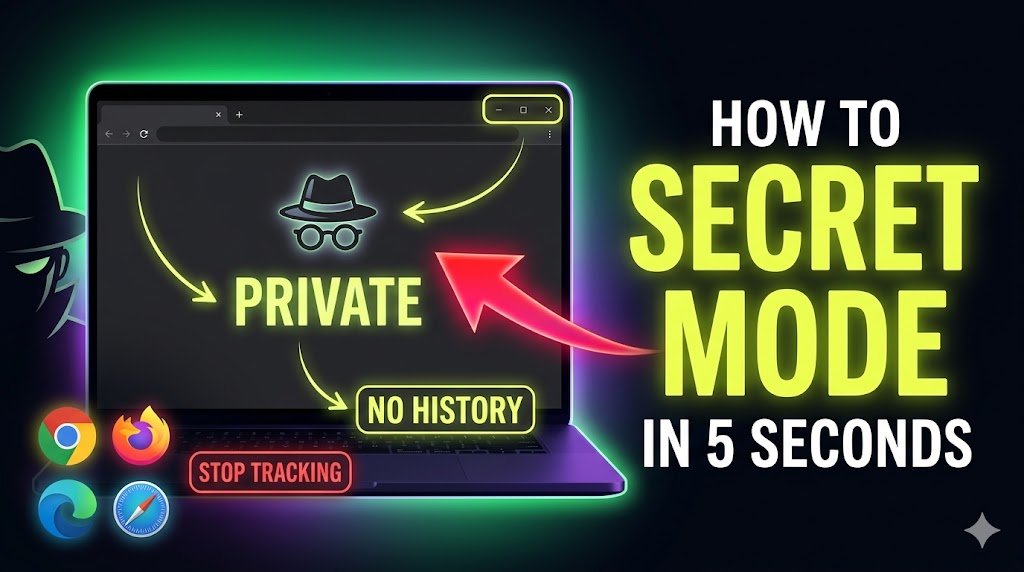

🚀 Introduction: Want to Browse Privately Without Leaving a Trace?
Ever searched something online and then noticed ads following you everywhere?
Or maybe you used someone else’s phone and didn’t want your browsing history saved?
Yeah… we’ve all been there.
That’s exactly where Incognito Mode comes in. But many people still don’t know how to activate Incognito Mode on different devices.
Don’t worry—this guide will show you exact steps, all devices, zero confusion.
⚡ Quick Answer (Featured Snippet)
👉 To activate Incognito Mode, open your browser, click the three-dot menu, and select “New Incognito Window” (or “Private Mode”).
✔ Shortcut: Press Ctrl + Shift + N on Windows or Cmd + Shift + N on Mac.
🧩 What is Incognito Mode?
Incognito Mode is a private browsing feature available in most web browsers.
When you activate Incognito Mode:
- Your browsing history is not saved
- Cookies are deleted after session
- Form data is not stored
👉 In simple words:
It lets you browse the internet without leaving traces on your device.
🔐 Why It is Important
You might be wondering—why should I even learn how to activate Incognito Mode?
Here’s why it matters:
✔ Protect Your Privacy
Your search history won’t be saved on the device.
✔ Use Shared Devices Safely
Perfect when using cyber cafes or someone else’s phone.
✔ Avoid Personalized Ads
Prevents tracking cookies during that session.
✔ Login to Multiple Accounts
You can open another account without logging out.
👉 Real-life example:
Want to check a second Gmail account? Just use Incognito—no hassle.
🪜 Step-by-Step Guide: How to Activate Incognito Mode
Let’s break it down by device so you don’t get confused.
💻 On Google Chrome (Desktop)
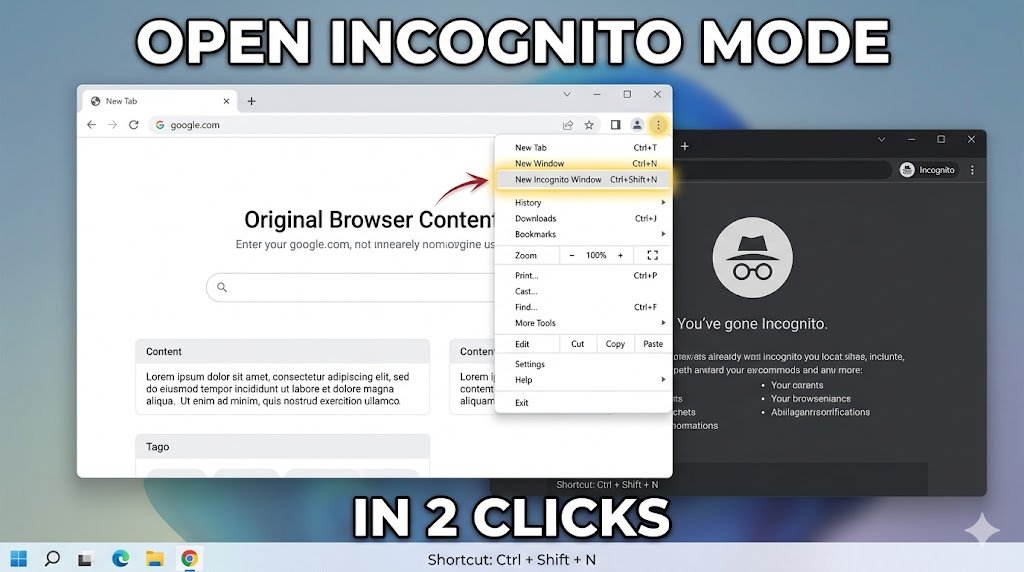
- Open Chrome browser
- Click the three dots (top-right corner)
- Click “New Incognito Window”
👉 Shortcut:
- Windows: Ctrl + Shift + N
- Mac: Cmd + Shift + N
✔ A dark window will open—this means Incognito Mode is active.
📱 On Android (Chrome App)
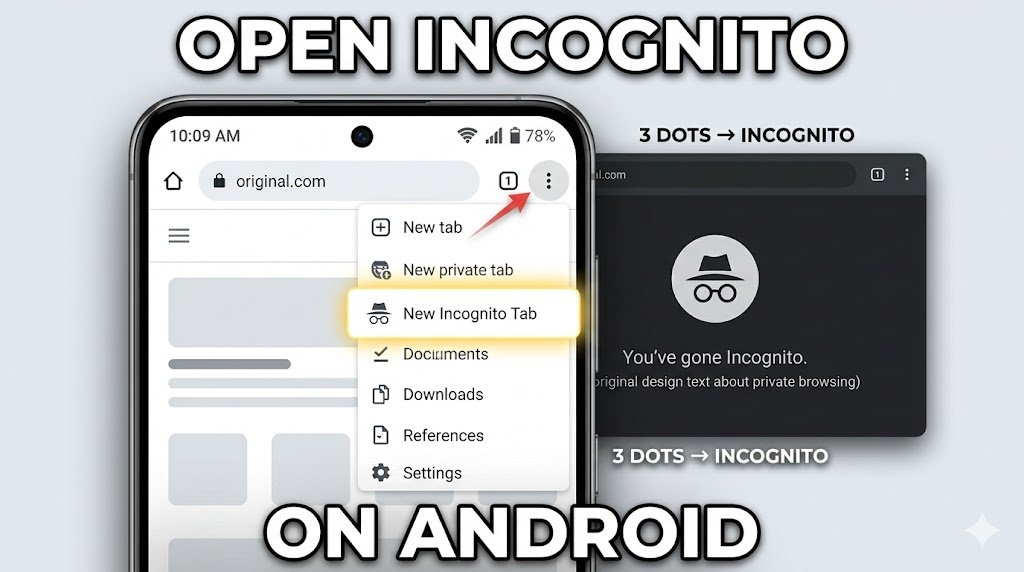
- Open Chrome app
- Tap the three dots (top-right)
- Select “New Incognito Tab”
👉 You’ll see a dark screen with an Incognito icon.
🍎 On iPhone (Safari)
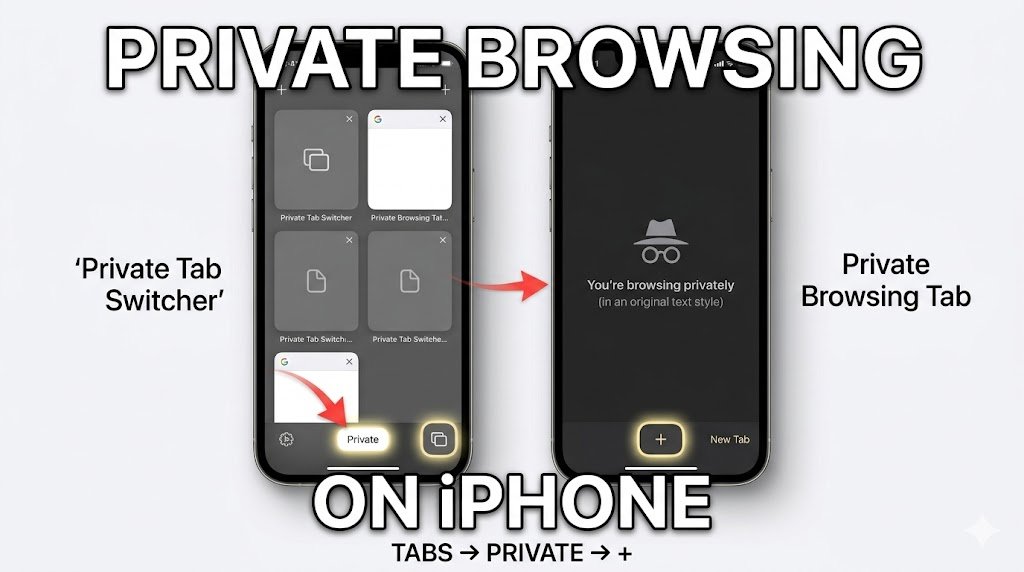
- Open Safari
- Tap the tabs icon
- Tap “Private”
- Tap “+” to open a new private tab
✔ Now you’re browsing privately.
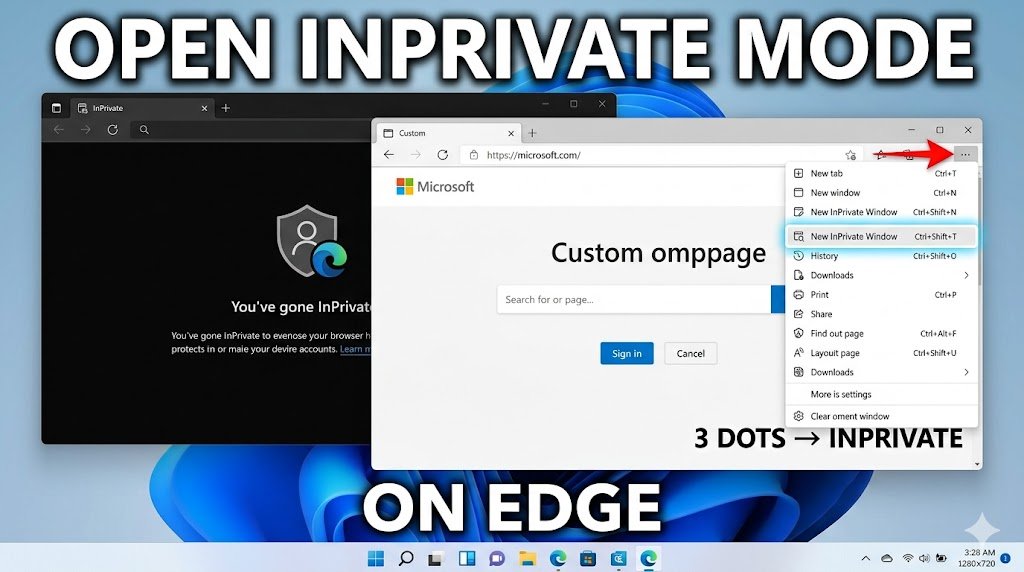
🧑💻 On Microsoft Edge
- Open Edge
- Click three dots
- Select “New InPrivate Window”
👉 Same function, different name.
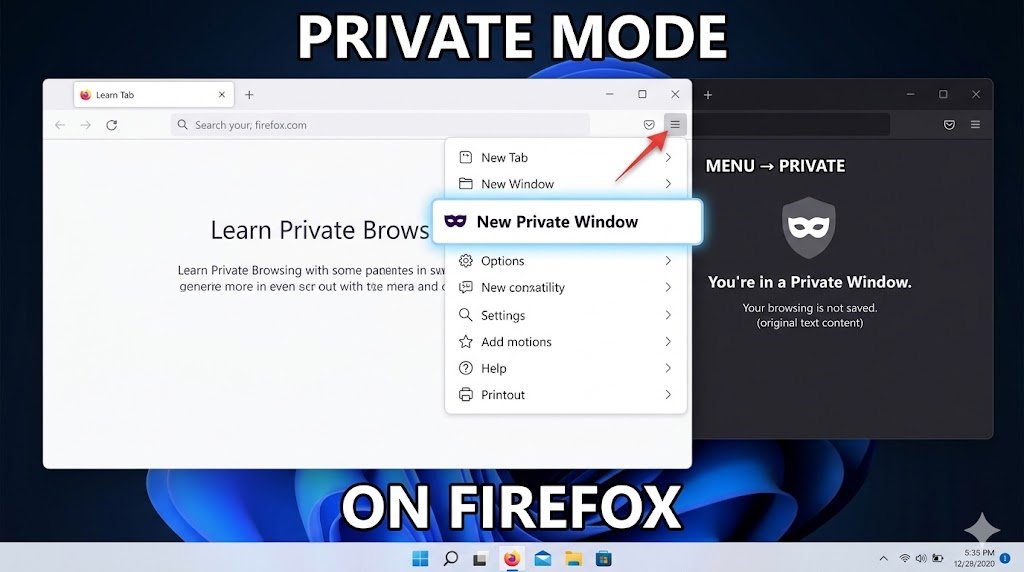
🦊 On Firefox
- Open Firefox
- Click menu (three lines)
- Select “New Private Window”
👉 Follow this step carefully:
Always check for dark theme or “Incognito/Private” icon to confirm it’s active.
⚠️ Common Mistakes to Avoid
Even if you know how to activate Incognito Mode, people make these mistakes:
❌ Thinking it’s 100% anonymous
👉 Your ISP, employer, or websites can still track you.
❌ Forgetting to close tabs
Incognito only works after you close all private tabs.
❌ Logging into accounts
If you log in, websites still know who you are.
❌ Using it for downloads thinking it’s hidden
Downloaded files are still saved on your device.
💡 Pro Tips (Insider Secrets)
Want to use Incognito like a pro? Here’s how:
🔥 Use VPN with Incognito
For better privacy, combine with a VPN.
🔥 Test websites without cache
Great for developers and marketers.
🔥 Avoid auto-fill distractions
Clean browsing = better focus.
🔥 Use for price comparison
Some sites show different prices based on history.
❓ FAQs (People Also Ask)
1. How do I activate Incognito Mode quickly?
👉 Use shortcut: Ctrl + Shift + N (Windows) or Cmd + Shift + N (Mac).
2. Is Incognito Mode completely safe?
❌ No. It hides local history, but not your activity from websites or ISPs.
3. Can I use Incognito Mode on mobile?
✔ Yes, both Android and iPhone support it in browsers.
4. Does Incognito save passwords?
❌ No, it doesn’t save login info or history.
5. Why is Incognito Mode not working?
👉 Try:
- Restart browser
- Update app
- Check settings restrictions
🎯 Final Thoughts: Should You Use Incognito Mode?
Now you fully understand how to activate Incognito Mode—and more importantly, when to use it.
👉 It’s not magic privacy, but it’s super useful for:
- Quick private searches
- Shared devices
- Temporary browsing
✔ Simple. Fast. Effective.
💬 Your Turn!
Did this guide help you?
👉 Drop a comment or share it with someone who needs it.
Want more simple tech guides like this? Just ask 👍
I prefer this responseChatGPT