
🎮 Introduction: Why is Fortnite not working right now?
You sit down, launch Fortnite… and boom—nothing.
Maybe it’s stuck on the loading screen, crashing mid-game, or showing a weird server error.
Frustrating, right?
You’re not alone. Every day, thousands of players search “Why is Fortnite not working” because the game suddenly stops cooperating—especially right when you’re ready to drop into a match.
The good news?
Most Fortnite issues are quick to fix—and you don’t need to be a tech expert.
This guide breaks everything down in simple steps so you can get back in the game fast.
⚡ Try These First (2-Minute Fixes)
Before diving into complex solutions, try these quick wins:
- Restart your device (PC, console, or phone)
- Close and reopen Fortnite
- Check your internet connection (WiFi → switch to mobile data or vice versa)
- Log out and log back into your Epic Games account
- Update Fortnite if a new version is available
- Turn off VPN (this often breaks connections)
👉 These alone fix 70% of “Fortnite not working” issues.
🔥 Main Reasons Why Fortnite Is Not Working (And Fixes)
🌐 1. Fortnite Server Issues (Most Common)
Why it happens:
Sometimes the problem isn’t you—it’s Fortnite itself.
Servers go down due to:
- Maintenance updates
- New season launches
- High traffic spikes
This leads to:
- Login errors
- Matchmaking failure
- “Fortnite server down” messages
Fix:
- Check Epic Games server status (Google it quickly)
- Wait 10–30 minutes if servers are down
- Avoid reinstalling—this won’t help here
💡 Tip: If Twitter/X is full of complaints, it’s definitely a server issue.
📶 2. Internet Problems
Why it happens:
Fortnite needs a stable connection. Even small drops can cause:
- Lag
- Disconnections
- Fortnite not launching
Fix:
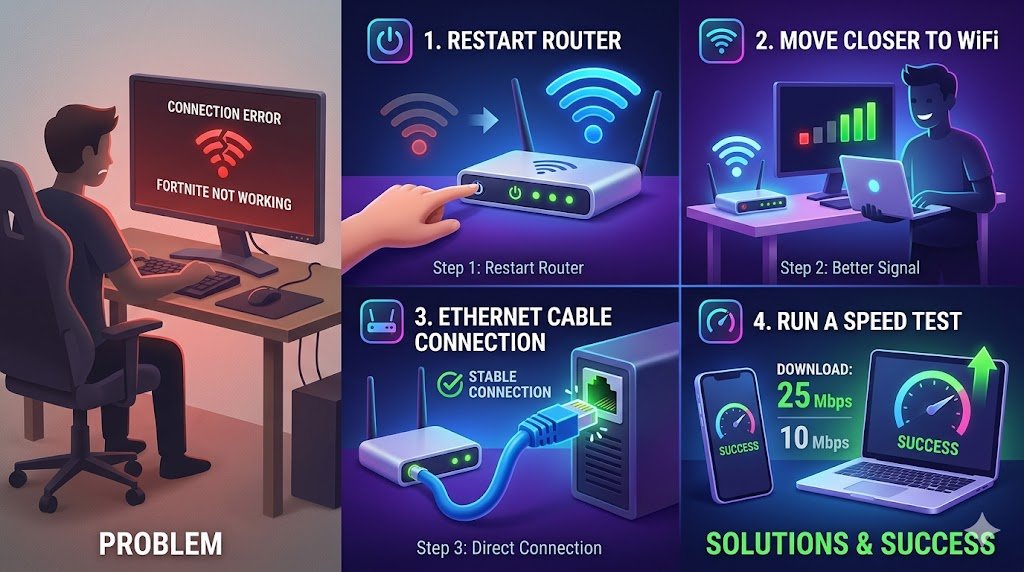
- Restart your router
- Move closer to WiFi
- Use Ethernet cable (best for PC/console)
- Run a speed test (minimum 10 Mbps recommended)
💻 3. PC Issues (Very Common)
Why Fortnite is not working on PC:
- Outdated graphics drivers
- Corrupted game files
- Low system specs
Fix:
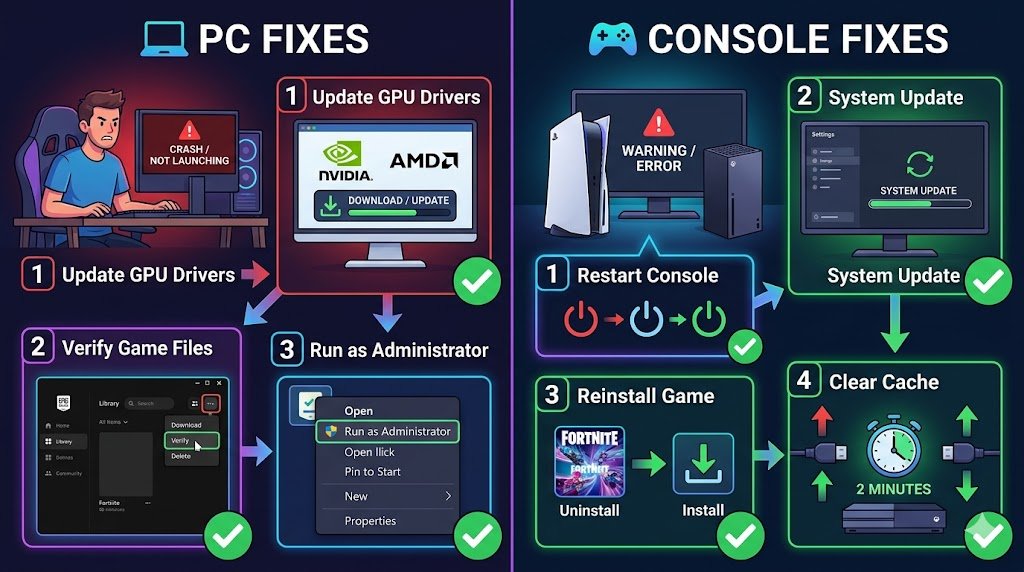
✔ Update GPU Drivers
- Go to NVIDIA / AMD website
- Download latest drivers
✔ Verify Game Files
- Open Epic Games Launcher
- Go to Library
- Click 3 dots → “Verify”
✔ Run as Administrator
- Right-click Fortnite → Run as Admin
🎮 4. PS5 / Xbox Problems
Why it happens:
- System cache issues
- Game updates stuck
- Console bugs
Fix:
- Restart your console fully (not rest mode)
- Check for system updates
- Reinstall Fortnite if needed
- Clear console cache:
- Turn off → unplug → wait 2 minutes → restart
📱 5. Mobile Issues (Android/iOS)
Why Fortnite is not working on mobile:
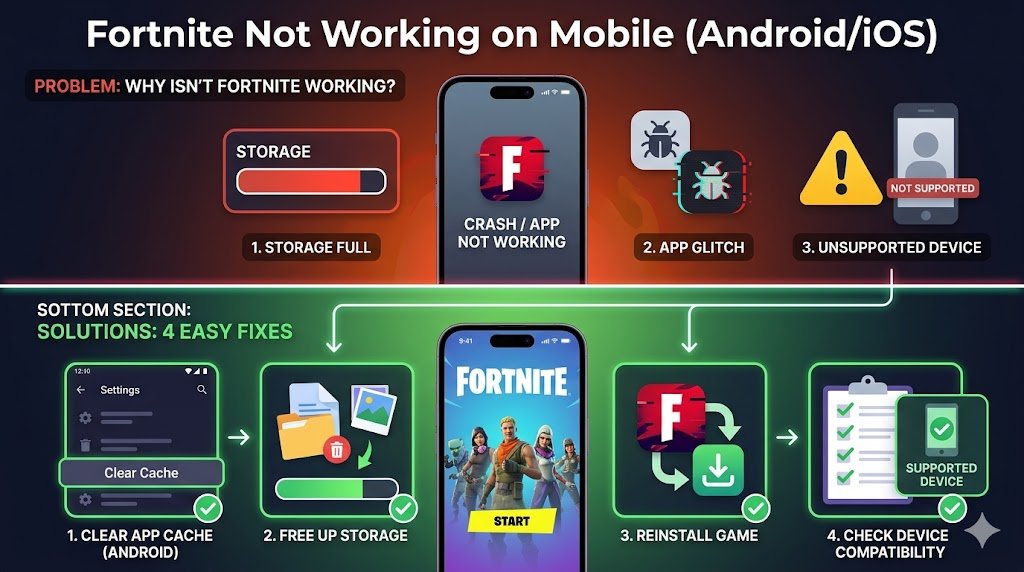
- Storage full
- App glitches
- Unsupported device
Fix:
- Clear app cache (Android)
- Free up storage space
- Reinstall the game
- Make sure your device supports Fortnite
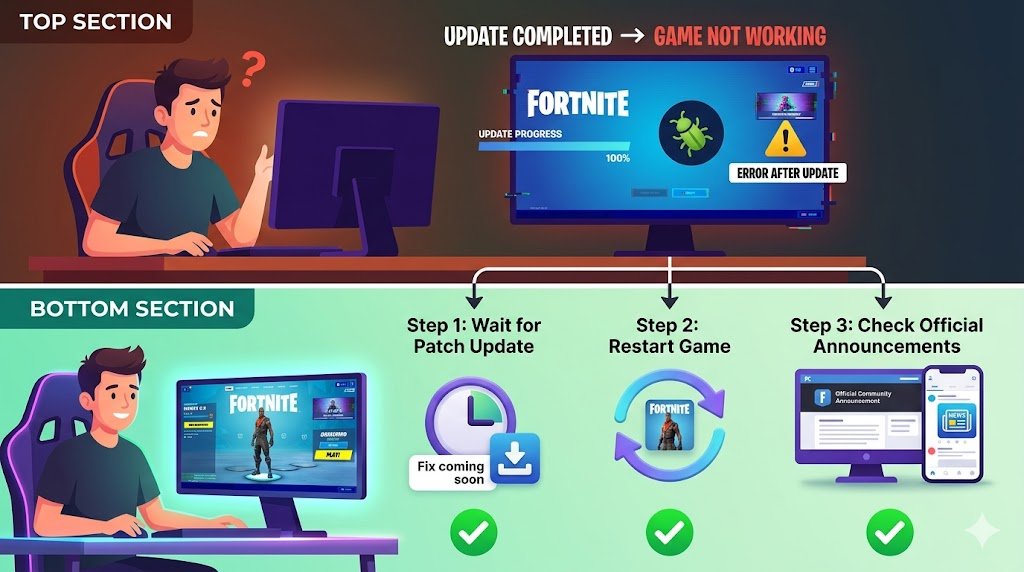
🐛 6. Bugs After Updates
Real scenario:
“After the latest update, Fortnite stopped working”
Why it happens:
New updates sometimes break things temporarily.
Fix:
- Wait for a patch update (usually within hours)
- Restart game multiple times
- Check official announcements
🛠️ Advanced Fixes (If Nothing Works)
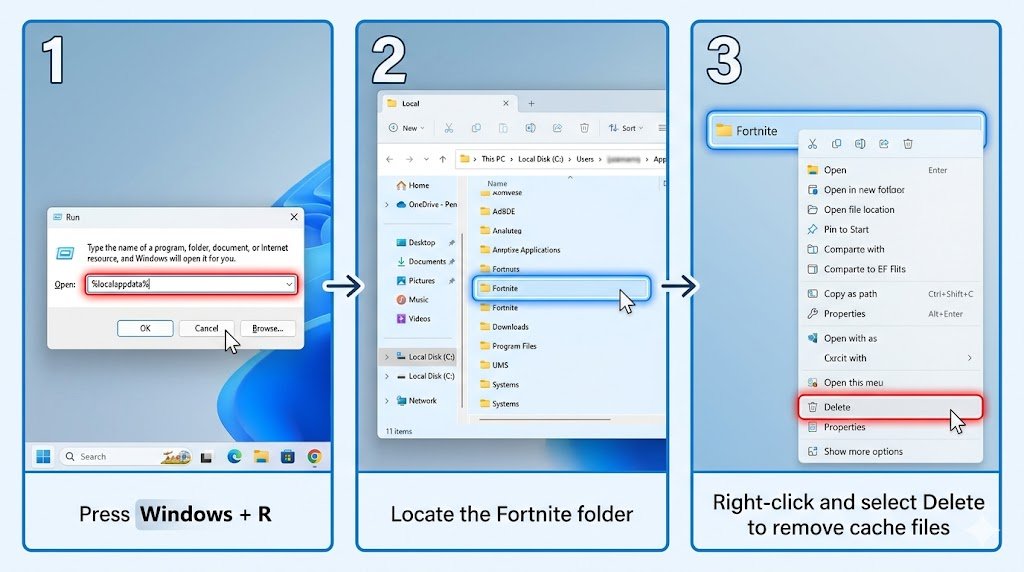
🔄 1. Clear Cache (PC)
- Press Windows + R
- Type
%localappdata% - Delete Fortnite folders (cache files)
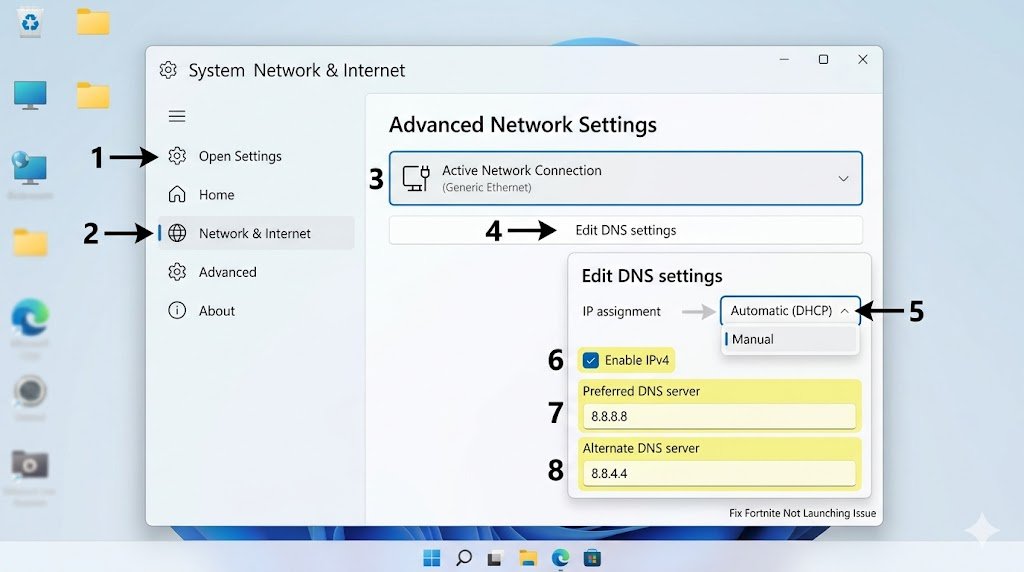
🌍 2. Change DNS Settings
Use faster DNS:
- Google DNS:
- 8.8.8.8
- 8.8.4.4
This improves connection and fixes Fortnite not launching issues.
♻️ 3. Reinstall Fortnite
Last resort, but very effective.
- Uninstall Fortnite
- Restart device
- Reinstall fresh copy
🎯 4. Update Windows
Outdated OS = compatibility issues.
- Go to Settings → Update & Security
- Install pending updates
🎯 Real-Life Scenarios (And Fixes)
❌ “Fortnite stuck on loading screen”
Fix:
- Restart game
- Verify files
- Check servers
❌ “Fortnite crashing mid-game”
Fix:
- Update GPU drivers
- Lower graphics settings
- Close background apps
❌ “Fortnite won’t open at all”
Fix:
- Run as admin
- Disable antivirus temporarily
- Reinstall launcher
❓ FAQ (SEO Optimized)
👉 Is Fortnite down right now?
Check Epic Games server status. If servers are down, you’ll need to wait—it’s not your device.
👉 Why is Fortnite crashing?
Usually caused by outdated drivers, overheating, or corrupted files. Updating and verifying files fixes it.
👉 Why won’t Fortnite open?
This happens due to system issues, missing files, or permissions. Try running as admin or reinstalling.
👉 Why is Fortnite not launching after update?
Updates sometimes introduce bugs. Wait for a patch or verify game files.
💡 Pro Tips to Prevent Fortnite Issues
- Always keep your game updated
- Don’t run heavy apps in background
- Use stable internet (avoid public WiFi)
- Keep drivers updated
- Restart your system regularly
✅ Conclusion: Don’t Panic—Fortnite Will Work Again
If you’re wondering “Why is Fortnite not working”, the answer is usually simple:
- Server issue
- Internet problem
- Device glitch
Start with quick fixes, then move to advanced steps if needed.
Most problems get solved in minutes.
Now go ahead—launch Fortnite again.
Your next Victory Royale is waiting. 🎯