
Last updated: May 2026
If you want to cancel your iolo System Mechanic subscription, the fastest method is through your iolo account billing settings. Log in, turn off auto-renewal, confirm the cancellation, and keep the confirmation email for your records. Depending on where you purchased the software, you may also need to cancel through PayPal, Digital River, or your app store subscription settings.
Many users mistakenly uninstall the software and assume the subscription ends automatically. It doesn’t. You must disable recurring billing separately to avoid future charges.
Quick Answer Box
| Question | Quick Answer |
|---|---|
| Can you cancel iolo System Mechanic anytime? | Yes, you can disable auto-renewal at any time. |
| Does uninstalling cancel the subscription? | No. Uninstalling does not stop billing. |
| Where do you cancel? | Through your iolo account or payment provider. |
| Will you lose access immediately? | Usually no. Access continues until the current billing period ends. |
| Can you get a refund? | Sometimes, depending on the refund window and purchase terms. |
| Is customer support required? | Not always, but some accounts may require manual assistance. |
Why Users Cancel iolo System Mechanic
People cancel iolo System Mechanic subscriptions for several reasons:
- They no longer use PC optimization tools
- Automatic renewal caught them by surprise
- The software overlaps with built-in Windows maintenance tools
- They upgraded devices or switched antivirus platforms
- Renewal pricing was higher than expected
Others simply want to avoid recurring software subscriptions altogether.
Whatever the reason, cancellation is usually straightforward once you know where the subscription was originally purchased.
Step-by-Step Guide to Cancel iolo System Mechanic Subscription
Method 1: Cancel Through Your iolo Account
This is the most common cancellation method.
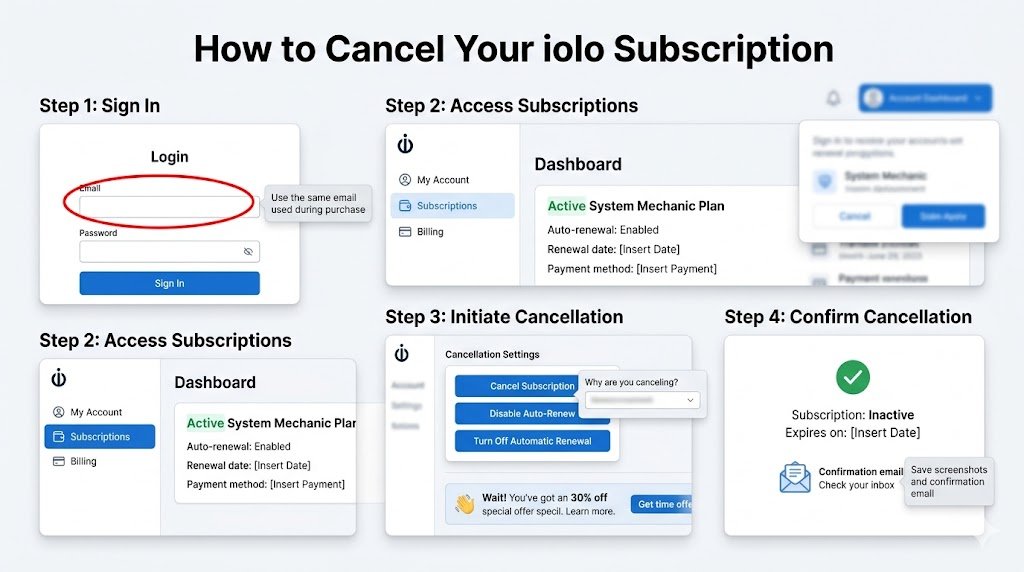
Step 1: Visit the Official iolo Login Page
Go to the official iolo account portal and sign in using the email associated with your purchase.
Make sure you use the same email you used during checkout. A common issue is logging into the wrong account and not seeing the subscription listed.
Step 2: Open Subscription or Billing Settings
After logging in:
- Navigate to:
- “My Account”
- “Subscriptions”
- or “Billing”
- Locate your active System Mechanic plan.
You may see:
- Auto-renewal enabled
- Renewal date
- Payment method
- Subscription status
Step 3: Turn Off Auto-Renewal
Select:
- “Cancel Subscription”
- “Disable Auto-Renew”
- or “Turn Off Automatic Renewal”
The wording varies depending on the billing platform.
You may be asked:
- Why you’re canceling
- Whether you want a discount offer
- To confirm cancellation more than once
This is normal.
Step 4: Confirm the Cancellation
After confirming:
- Save screenshots
- Keep the confirmation email
- Check that the renewal status now shows “inactive” or “expires on”
This matters because failed cancellations are often caused by incomplete confirmation steps.
Alternative Ways to Cancel iolo System Mechanic
Not every subscription is billed directly through iolo. Some users purchased through third-party processors.
Cancel Through PayPal
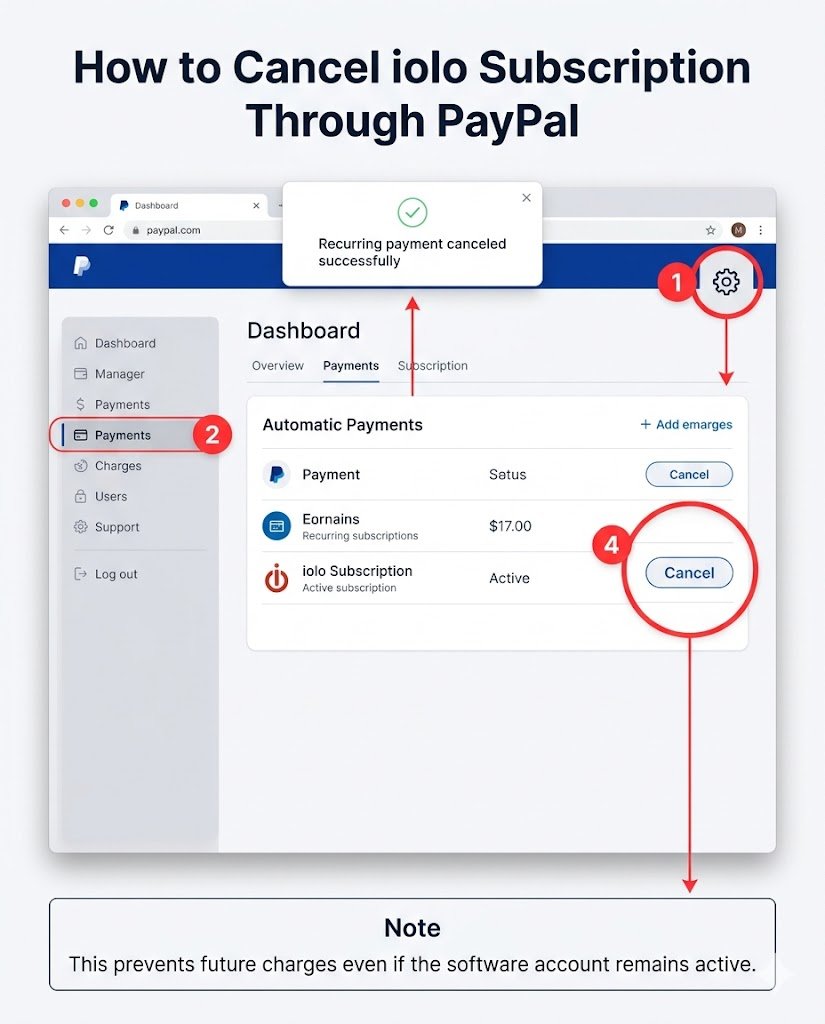
If you subscribed using PayPal recurring payments:
- Log into PayPal
- Open:
- Settings
- Payments
- Automatic Payments
- Find the iolo subscription
- Select “Cancel”
This prevents future charges even if the software account remains active.
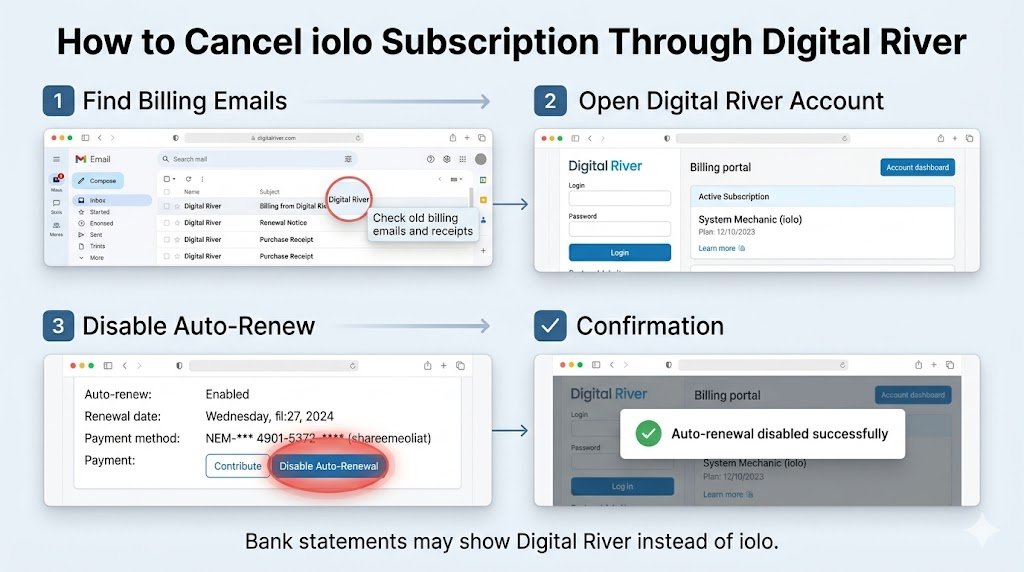
Cancel Through Digital River
Many older iolo subscriptions were processed through Digital River.
Look for:
- Billing emails from Digital River
- Renewal notices
- Original purchase receipts
Then:
- Access your Digital River account
- Locate the active subscription
- Disable auto-renewal
Users often miss this because the billing company name appears differently on bank statements.
Cancel Through Apple App Store
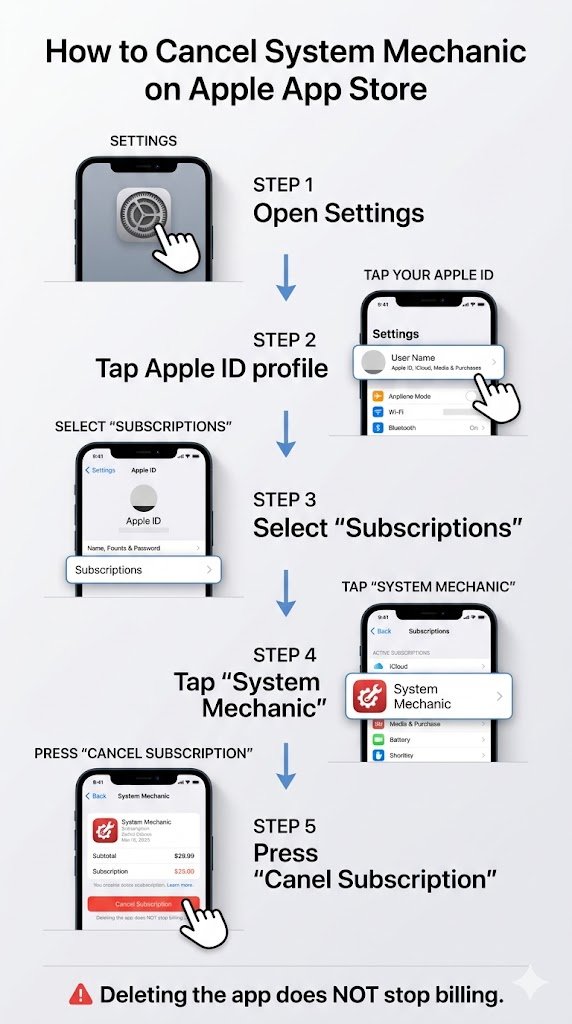
If you subscribed on macOS or iOS:
- Open Settings
- Tap your Apple ID
- Choose Subscriptions
- Select System Mechanic
- Tap Cancel Subscription
Deleting the app alone does not stop billing.
Cancel Through Google Play
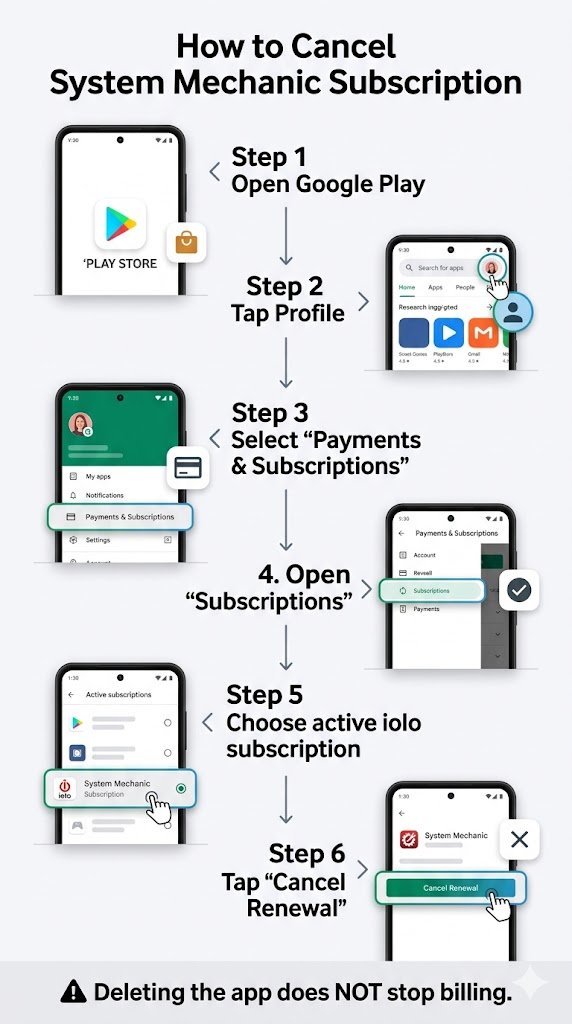
For Android purchases:
- Open Google Play
- Tap Profile
- Select Payments & Subscriptions
- Open Subscriptions
- Choose the active iolo subscription
- Cancel renewal
What Happens After Cancellation?
This is one of the most common concerns users have.
In most cases:
- Your subscription remains active until the billing cycle ends
- Premium features continue working temporarily
- Auto-renewal stops immediately
- You won’t be charged again unless you manually reactivate
Some features may downgrade after expiration, including:
- Real-time optimization
- Malware protection components
- Automatic maintenance tools
- Priority support
Your core installation may still remain on the computer.
Do You Need to Uninstall iolo System Mechanic?
Not necessarily.
Canceling billing and uninstalling the software are separate actions.
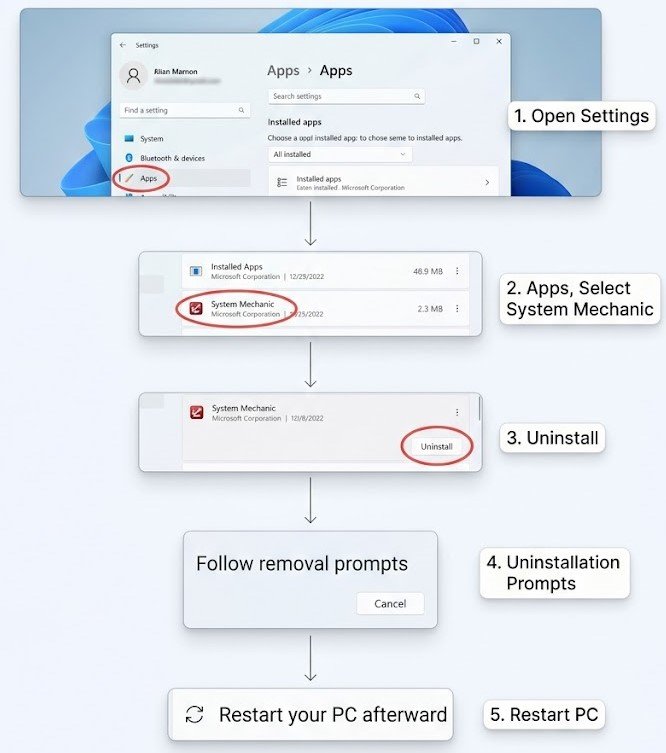
If you also want to remove the program completely:
Windows Uninstall Steps
- Open Windows Settings
- Go to Apps
- Locate System Mechanic
- Select Uninstall
- Follow removal prompts
Restarting the computer afterward helps remove leftover background services.
iolo System Mechanic Refund Policy
Refund eligibility depends on:
- Purchase date
- Renewal timing
- Billing provider
- Regional consumer laws
Many users successfully receive refunds when they act quickly after renewal.
You May Qualify for a Refund If:
- The renewal charge was recent
- You forgot to disable auto-renewal
- Duplicate charges occurred
- Technical issues prevented software use
How to Request a Refund
Contact customer support with:
- Order number
- Billing email
- Transaction date
- Payment method
Be polite and concise. Refund decisions are often easier when requests are submitted soon after the charge appears.
Common Problems During Cancellation
1. “I Can’t Find My Subscription”
This usually happens because:
- The wrong email address was used
- The purchase came through PayPal or Digital River
- Multiple iolo accounts exist
Search your inbox for:
- “iolo”
- “System Mechanic”
- “renewal”
- “receipt”
That typically reveals the billing source.
2. Auto-Renew Keeps Showing Active
Sometimes users exit before final confirmation.
Always:
- Complete every confirmation page
- Wait for the success message
- Verify via email confirmation
If the renewal still appears active after several hours, contact support directly.
3. Charged After Cancellation
Possible causes include:
- Cancellation submitted after the renewal date
- Multiple subscriptions
- Separate billing accounts
- Trial conversion charges
Gather:
- Confirmation screenshots
- Emails
- Bank statements
Then escalate through customer support.
4. Support Isn’t Responding
If support delays occur:
- Check spam folders
- Use the official support portal
- Try live chat if available
- Reply to existing ticket threads instead of opening new ones
Opening multiple tickets can slow resolution.
Common Mistakes Users Make
Assuming Uninstalling Cancels Billing
This is the biggest mistake.
Software removal does not stop recurring payments.
You must disable auto-renewal separately.
Ignoring Renewal Emails
Many users overlook renewal notices because:
- They arrive weeks early
- They resemble promotional emails
- They land in spam folders
Checking renewal notices regularly helps avoid surprise charges.
Canceling Too Late
Waiting until the renewal date itself can create problems.
Some systems process payments before the visible due date.
It’s safer to cancel several days early.
Forgetting About Third-Party Billing
Users often search inside the software itself when billing is handled elsewhere.
Always identify:
- Where you purchased the subscription
- Which payment processor was used
- Which email address received receipts
Is iolo System Mechanic Worth Keeping?
That depends on your setup and expectations.
Some users appreciate:
- Automated maintenance
- Registry cleanup
- Startup optimization
- Performance monitoring
Others prefer:
- Built-in Windows tools
- Lightweight utilities
- Manual maintenance methods
The right choice depends on how actively you use the software.
Tips Before You Cancel
Before canceling your iolo System Mechanic subscription:
- Export any saved settings
- Disable automatic scans
- Check remaining subscription time
- Confirm cancellation emails are received
- Remove stored payment methods if preferred
These steps reduce future billing confusion.
FAQ: iolo System Mechanic Subscription Cancellation
How do I cancel iolo System Mechanic auto-renewal?
Log into your account dashboard, open billing settings, and disable automatic renewal. If billed through PayPal or an app store, cancel directly there instead.
Can I cancel iolo System Mechanic and still use it?
Usually yes. Most subscriptions remain active until the current paid term expires.
Does deleting System Mechanic cancel the subscription?
No. Uninstalling the software does not stop recurring billing.
How long does cancellation take?
Most cancellations process immediately, although account updates can occasionally take several hours.
Can I get a refund after renewal?
Possibly. Refund approval depends on timing, billing provider, and purchase terms.
Why was I charged after uninstalling the software?
Because uninstalling does not disable auto-renewal billing.
Where can I find my iolo order number?
Check:
- Email receipts
- Renewal notices
- PayPal transaction history
- Digital River confirmations
What if I forgot which email I used?
Search your inboxes for:
- “System Mechanic”
- “iolo”
- “renewal notice”
This usually identifies the correct account.
Can customer support cancel the subscription for me?
Yes, in many cases support representatives can manually disable renewals if account access issues occur.
Final Thoughts
Canceling an iolo System Mechanic subscription is usually simple once you identify the original billing source. The key thing to remember is that uninstalling the software does not end recurring payments. You must disable auto-renewal directly through your account, payment processor, or app store subscription settings.
Most cancellation issues happen because users:
- Skip the final confirmation step
- Use the wrong login email
- Forget about PayPal or Digital River billing
Taking screenshots, saving confirmation emails, and canceling a few days before renewal helps avoid nearly every common problem.
If a charge already went through, contacting support quickly gives you the best chance of resolving billing or refund concerns successfully.