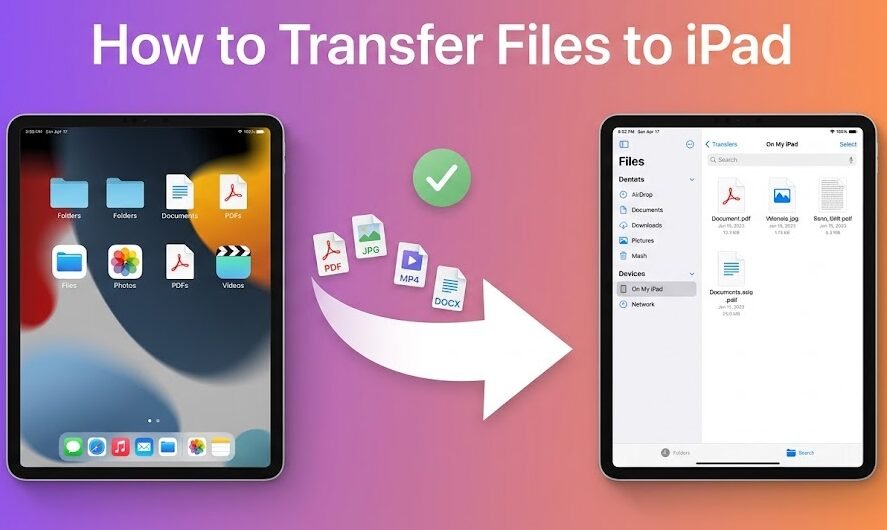

If you’re searching for how to transfer files to iPad, you’re not alone. I’ve helped well over 100 beginners at service desks and tech support counters, and the same question comes up constantly. The good news? Moving documents, photos, videos, PDFs, and other files to an iPad is much easier than it first appears once you understand which method fits your situation.
Most people aren’t afraid they’ll lose a file. They’re worried they’ll press the wrong button and break something. Relax—you won’t. We’ll walk through every major transfer method step by step.
Learn More: Who Blocked You on Instagram
WHY TRANSFERRING FILES TO AN IPAD FEELS CONFUSING AT FIRST
Unlike a traditional computer, the iPad doesn’t show a giant folder tree the moment you connect it.
Think of it this way:
- Your desk = Files app
- Your mailbox = iCloud Drive
The Files app stores and organizes content.
iCloud Drive synchronizes content between devices.
Time Required
- AirDrop: 10–30 seconds
- USB Cable: 1–5 minutes
- iCloud Drive: Depends on internet speed
- External Drive: Usually under 2 minutes
Difficulty Level
Beginner Friendly:
No technical experience required.
What Most Beginners Get Wrong
Many users assume:
- Files App = iCloud Drive
- USB transfer always requires iTunes
- AirDrop works on Windows
- Every file type can be transferred
None of those assumptions are completely true.
QUICK ANSWER: 7 WAYS TO TRANSFER FILES TO IPAD
- AirDrop (Mac only)
- iCloud Drive
- Finder on Mac
- Apple Devices App / iTunes on Windows
- Send Anywhere
- Email or Messages
- External USB Drive
Learn More: How to Cancel iolo System Mechanic Subscription
UNDERSTANDING THE IPAD FILE SYSTEM
What Is the Files App?
The Files app acts as your central file manager.
You’ll find:
- Downloads
- PDFs
- Documents
- USB drives
- Cloud storage locations
What Is iCloud Drive?
iCloud Drive stores files online.
When connected to the internet, your files automatically sync between:
- iPad
- iPhone
- Mac
Files App vs iCloud Drive
| Feature | Files App | iCloud Drive |
| Purpose | File management | Cloud storage |
| Works Offline | Yes | Limited |
| Sync Between Devices | No | Yes |
| Storage Location | Device | Cloud |
| Requires Internet | No | Yes |
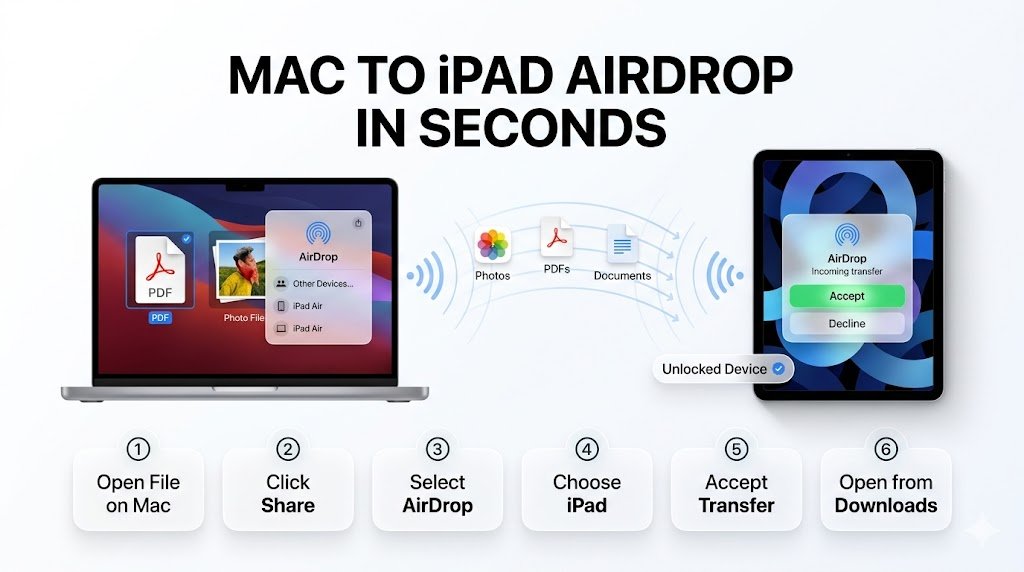
METHOD 1: IPAD AIRDROP FILE TRANSFER
Best for:
- Mac users
- Photos
- PDFs
- Quick transfers
AirDrop Requirements
You need:
- Wi-Fi enabled
- Bluetooth enabled
- Apple devices nearby
6-Step AirDrop Process
- Open file on Mac.
- Click Share.
- Select AirDrop.
- Choose your iPad.
- Accept transfer on iPad.
- Open file from Downloads.
Pro Tip: Keep the iPad unlocked during transfer.
METHOD 2: ICLOUD DRIVE IPAD TUTORIAL
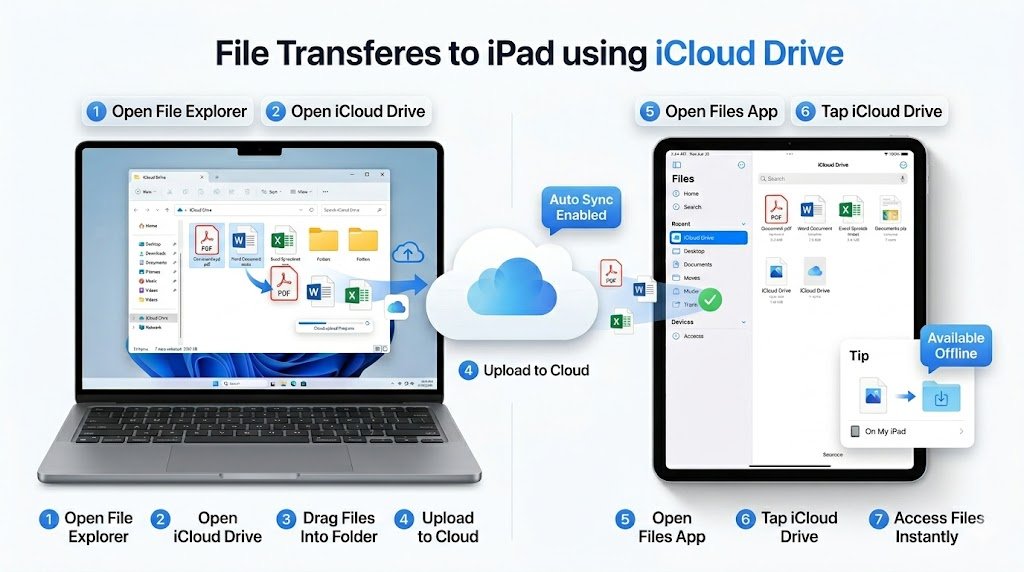
Best for:
- Continuous syncing
- Large document libraries
7-Step Transfer Process
- Open Finder or File Explorer.
- Visit iCloud Drive.
- Drag files into folder.
- Wait for upload.
- Open Files app on iPad.
- Tap iCloud Drive.
- Access files instantly.
Pro Tip: Tap “On My iPad” if you need offline access.
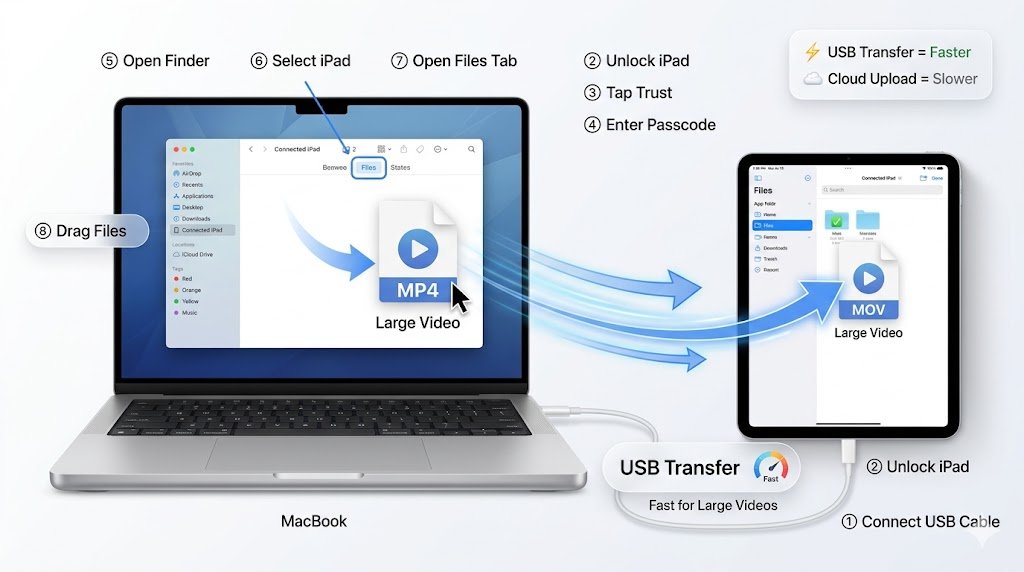
METHOD 3: TRANSFER FILES TO IPAD FROM MAC USING FINDER
This is one of the fastest methods for large files.
8-Step Process
- Connect USB cable.
- Unlock iPad.
- Tap Trust.
- Enter passcode.
- Open Finder.
- Select iPad.
- Open Files tab.
- Drag files into app.
Read More: How to Cancel Claude Pro Subscription
Pro Tip: Large video transfers are dramatically faster through USB than cloud uploads.
METHOD 4: TRANSFER FILES TO IPAD FROM PC USING APPLE DEVICES OR ITUNES
Windows users often rely on this method.
9-Step Process
- Install Apple Devices App.
- Connect iPad.
- Unlock device.
- Tap Trust This Computer.
- Enter passcode.
- Launch Apple Devices.
- Select iPad.
- Choose File Sharing.
- Add files.
Pro Tip: If your PC doesn’t see the iPad, try another USB port first.
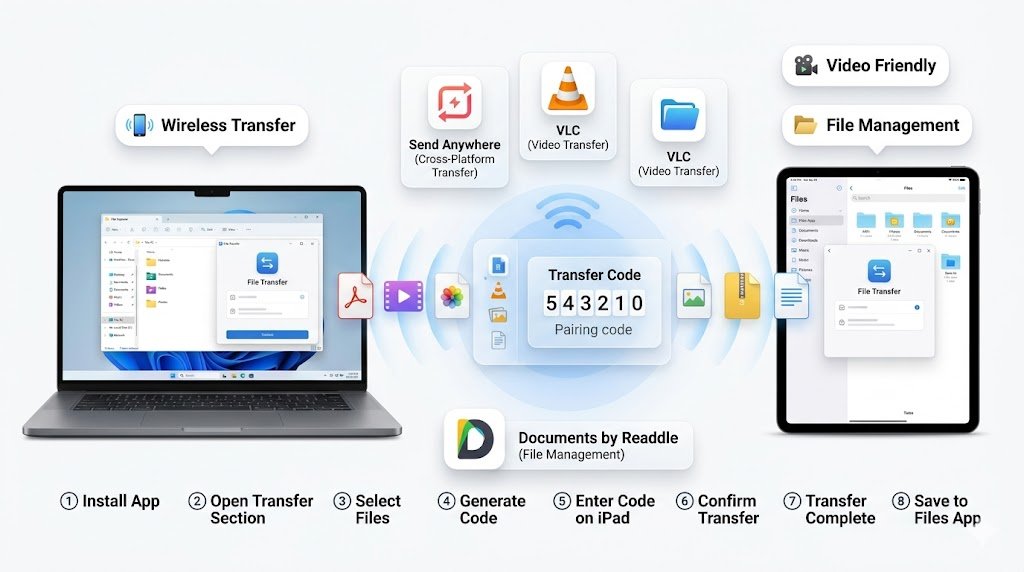
METHOD 5: FREE APP TRANSFER FILES IPAD
Send Anywhere
Ideal for quick transfers between different platforms.
VLC
Excellent for videos.
Documents by Readdle
Powerful file management.
Steps
- Install app.
- Open transfer section.
- Select files.
- Generate code.
- Enter code on iPad.
- Confirm transfer.
- Wait for completion.
- Save to Files app.
METHOD 6: EMAIL AND MESSAGES
Best for:
- PDFs
- Word documents
- Small files
Steps
- Attach file.
- Send email.
- Open Mail on iPad.
- Tap attachment.
- Save to Files.
Limitation:
Not suitable for very large files.
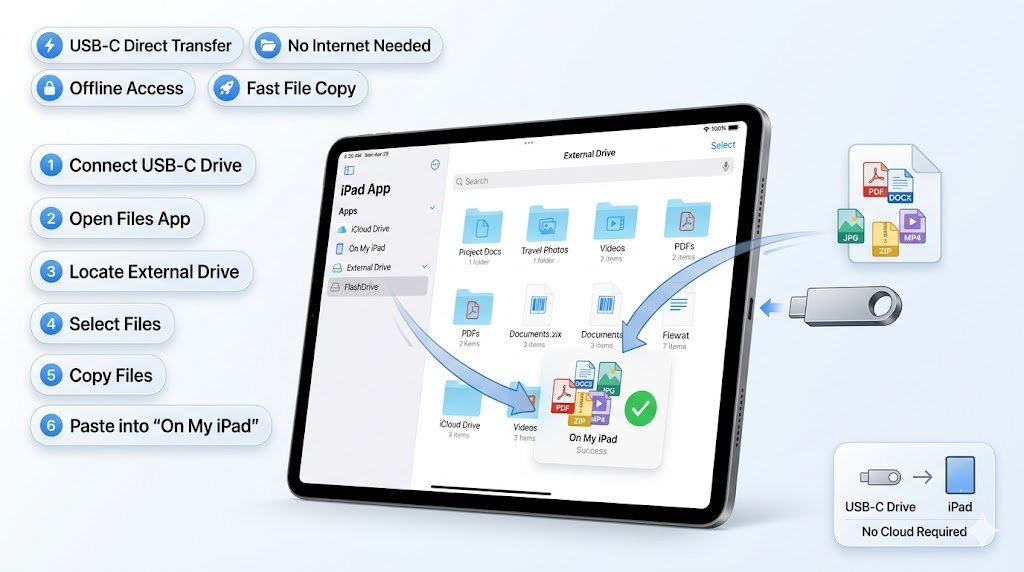
METHOD 7: USB DRIVE IPAD PRO 2024
The USB-C port changed everything.
Steps
- Connect USB drive.
- Open Files app.
- Locate drive.
- Select files.
- Copy.
- Paste into On My iPad.
Pro Tip: Modern iPad Pro models handle external SSDs surprisingly well.
METHOD COMPARISON TABLE
| Method | Difficulty | Speed | Best For | File Size Limit |
|---|---|---|---|---|
| AirDrop | Easy | Fast | Apple users | Very large |
| iCloud | Easy | Medium | Syncing | Storage limit |
| Finder | Medium | Very Fast | Mac users | Very large |
| Apple Devices | Medium | Fast | PC users | Very large |
| Send Anywhere | Easy | Medium | Cross-platform | App dependent |
| Easy | Slow | Small files | Attachment limits | |
| USB Drive | Easy | Fast | Offline transfers | Drive size |
PC VS MAC COMPARISON
| Feature | PC | Mac |
|---|---|---|
| AirDrop | No | Yes |
| Finder Transfer | No | Yes |
| Apple Devices App | Yes | No |
| USB Transfer | Yes | Yes |
| Ease of Use | Good | Excellent |
CABLE VS WIRELESS COMPARISON
| Feature | Cable | Wireless |
|---|---|---|
| Speed | Fastest | Variable |
| Cost | Cable required | Usually free |
| Reliability | Excellent | Depends on network |
| Large Files | Best choice | Slower |
| Convenience | Lower | Higher |
FREE VS PAID APPS
| App | Free Version | Paid Required |
|---|---|---|
| VLC | Yes | No |
| Send Anywhere | Yes | Optional |
| Documents | Yes | Optional |
TRUST THIS COMPUTER IPAD ERROR FIX
| Problem | Cause | Solution |
|---|---|---|
| No Trust prompt | Software issue | Restart both devices |
| Not recognized | Bad cable | Replace cable |
| Connection drops | USB issue | Change port |
| Sync fails | Outdated software | Update devices |
| Device invisible | Driver issue | Reinstall Apple software |
Learn This: HOW TO TRANSFER FILES TO IPAD
WARNING: IPAD FILE TYPE RESTRICTIONS
Some files transfer successfully but won’t open.
Examples include:
- Unsupported executable files
- Certain Windows-only software
- Proprietary application formats
Warning:
Never assume a transferred file is automatically usable.
IPAD PRO 2024 USB-C TIPS
Benefits include:
- External SSD support
- Faster transfer speeds
- Better compatibility
- Direct camera imports
COMMON BEGINNER MISTAKES
- Forgetting to tap Trust.
- Removing cable mid-transfer.
- Storing everything in Downloads.
- Ignoring iCloud storage limits.
- Using email for giant videos.
- Confusing Files app and iCloud Drive.
- Disconnecting SSD too quickly.
- Not checking available storage.
FILE ORGANIZATION TIPS
Create folders such as:
- Documents
- Photos
- Videos
- Work
- Personal
Pro Tip: A little organization now saves hours later.
TROUBLESHOOTING GUIDE
| Problem | Cause | Solution |
|---|---|---|
| iPad not detected | Cable issue | Replace cable |
| Transfer too slow | Weak Wi-Fi | Use USB |
| File missing | Wrong folder | Search Files app |
| AirDrop not working | Bluetooth disabled | Enable Bluetooth |
| File won’t open | Unsupported format | Convert file |
KEY TAKEAWAYS
- AirDrop is best for Apple users.
- Finder is fastest for Macs.
- Apple Devices works well on Windows.
- iCloud Drive simplifies syncing.
- USB-C makes external drives easy.
- Never disconnect during transfer.
CONCLUSION
Now that you know how to transfer files to iPad, choosing the right method becomes much easier. AirDrop excels for quick Apple-to-Apple transfers, USB connections handle large files efficiently, and iCloud Drive keeps everything synchronized automatically. Start with the simplest method for your situation and build confidence from there.

