
Quick Answer (Featured Snippet)
If your Chromebook is slow, it’s usually due to too many tabs, low storage, heavy extensions, or outdated ChromeOS. To fix it, close unused tabs, clear storage, remove extensions, and restart your device. For deeper issues, use Task Manager or perform a Powerwash reset.
Introduction
Is your Chromebook suddenly taking forever to open apps… lagging while browsing… or freezing for no reason?
You’re not alone.
Many users search “Why is my Chromebook so slow” when their device stops performing like it used to. The good news? Most issues are easy to fix — without buying a new laptop.
Here’s the truth…
Chromebooks are designed to be fast. So when they slow down, there’s usually a specific reason behind it — and once you fix it, performance improves instantly.
Let’s break it down.
Top Reasons Your Chromebook Is Slow
Understanding the problem is half the solution.
1. Too Many Tabs Open
Chromebooks rely heavily on the browser. Each tab uses memory.
- 10–15 tabs = noticeable slowdown
- 20+ tabs = serious lag
👉 Especially if tabs include videos or heavy websites.
2. Low Storage Space
If your storage is almost full, your Chromebook struggles to function.
- Temporary files build up
- Apps can’t run smoothly
✔ Ideally, keep at least 20–30% storage free
3. Too Many Extensions
Extensions can be helpful… but also dangerous.
- Some run in the background
- Others consume CPU constantly
👉 Even 5–10 extensions can slow things down.
4. Outdated ChromeOS
Running an old version?
- Bugs remain unfixed
- Performance issues increase
✔ Updates often include speed improvements.
5. Weak Hardware (Entry-Level Models)
Let’s be honest…
- Low RAM (4GB or less)
- Basic processors
These struggle with multitasking.
Quick Summary (Before You Fix It)
If your Chromebook is lagging, check:
- Open tabs
- Storage space
- Extensions
- System updates
👉 Fixing just one of these can boost performance instantly.
How to Fix a Slow Chromebook (Step-by-Step)
Follow these steps in order — from easiest to most effective.
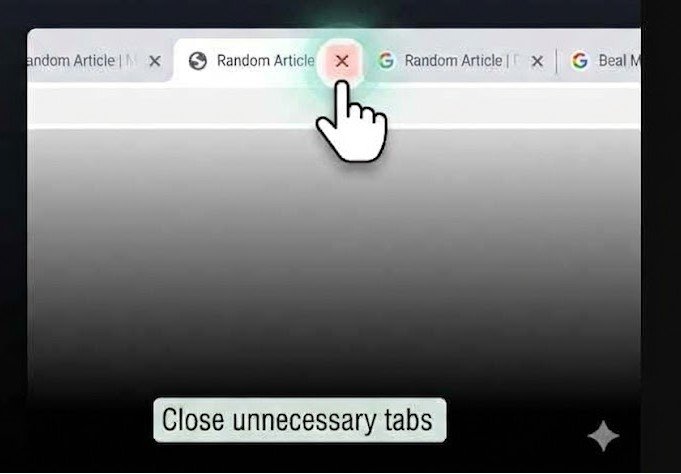
Step 1: Close Unused Tabs
- Look at your open tabs
- Close unnecessary ones
- Keep only essential tabs
✔ This alone can double your speed
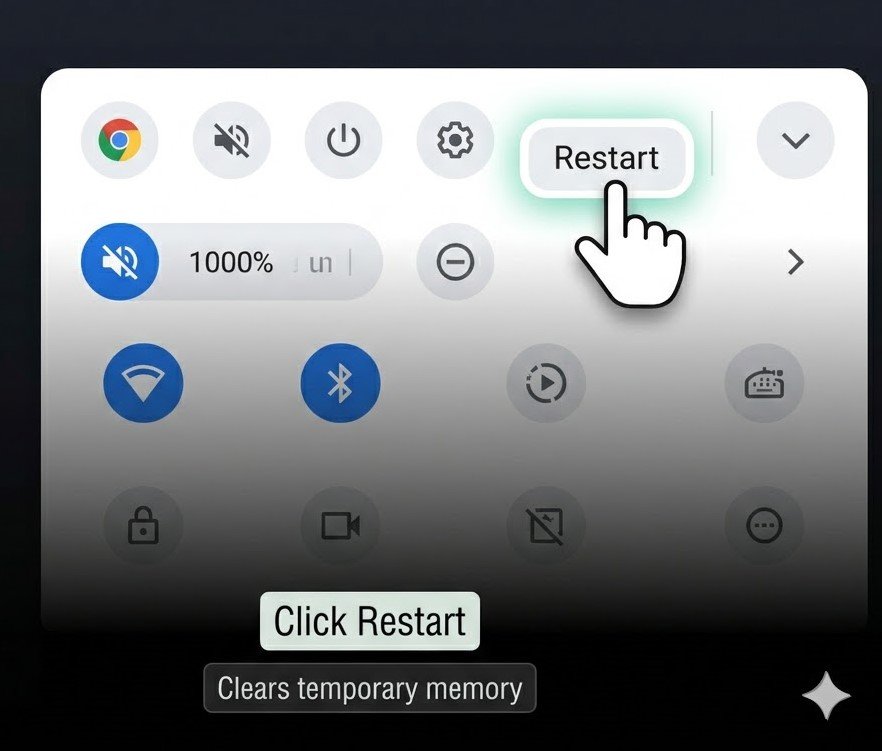
Step 2: Restart Your Chromebook
Sounds simple… but it works.
- Click the time (bottom-right)
- Select Power → Restart
👉 Clears temporary memory and background tasks.
Step 3: Clear Storage Space
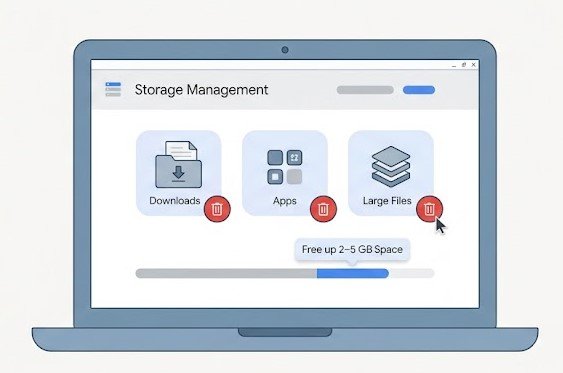
- Go to Settings → Device → Storage Management
- Delete:
- Downloads
- Unused apps
- Large files
✔ Aim to free at least 2–5 GB
Step 4: Remove Unnecessary Extensions
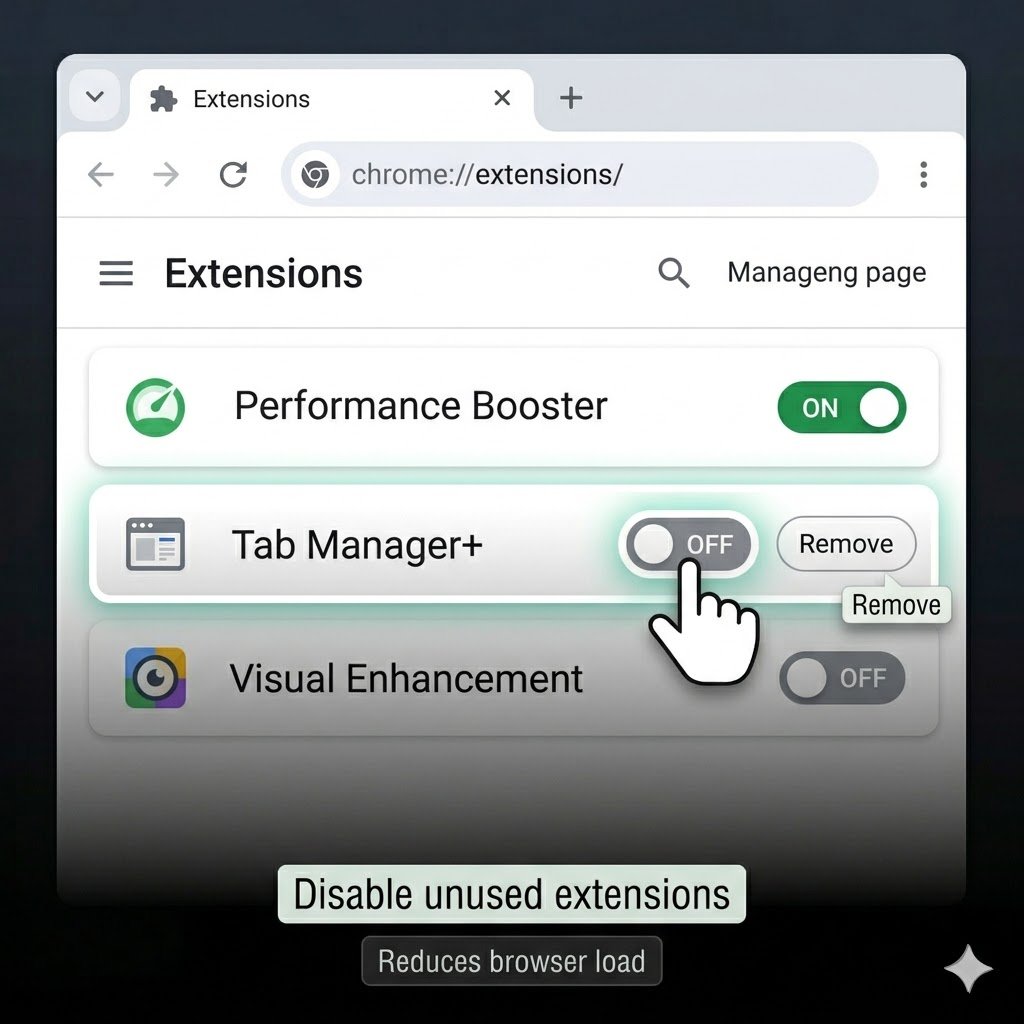
👉 Keep only essential ones.
- Open Chrome
- Go to: chrome://extensions/
- Disable or remove unused extensions
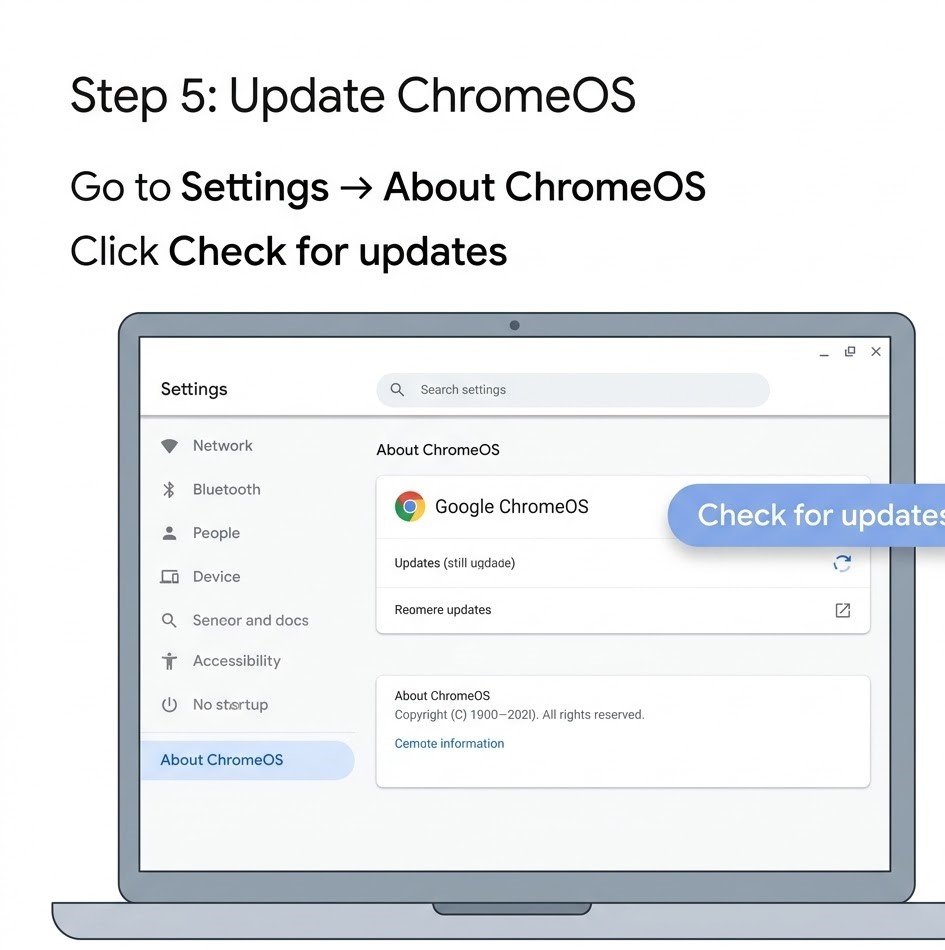
Step 5: Update ChromeOS
- Go to Settings → About ChromeOS
- Click Check for updates
- Install if available
✔ Updates often fix performance bugs.
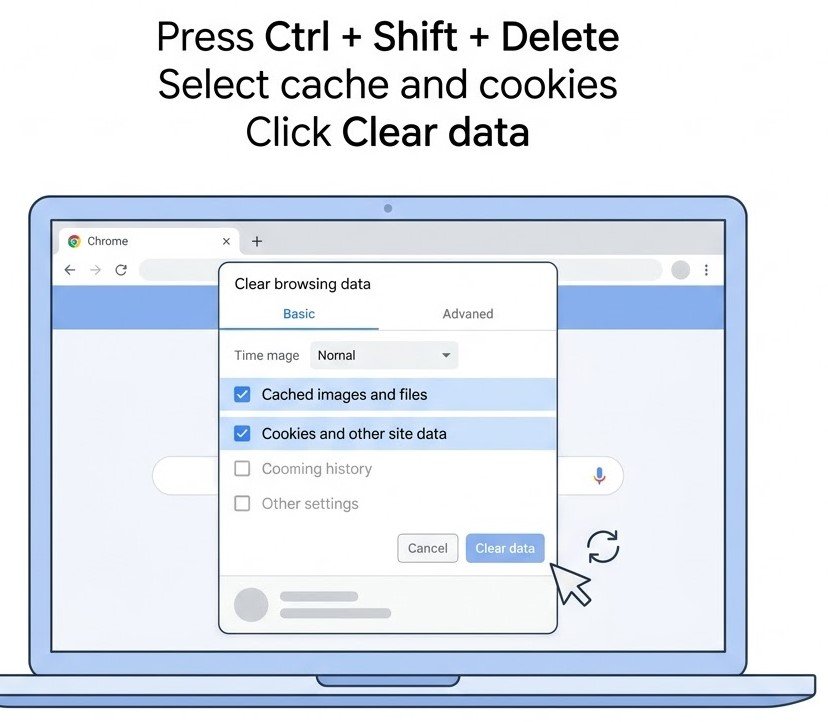
Step 6: Clear Cache & Browsing Data
- Open Chrome
- Press Ctrl + Shift + Delete
- Select:
- Cached images
- Cookies
- Click Clear data
👉 This removes unnecessary load.
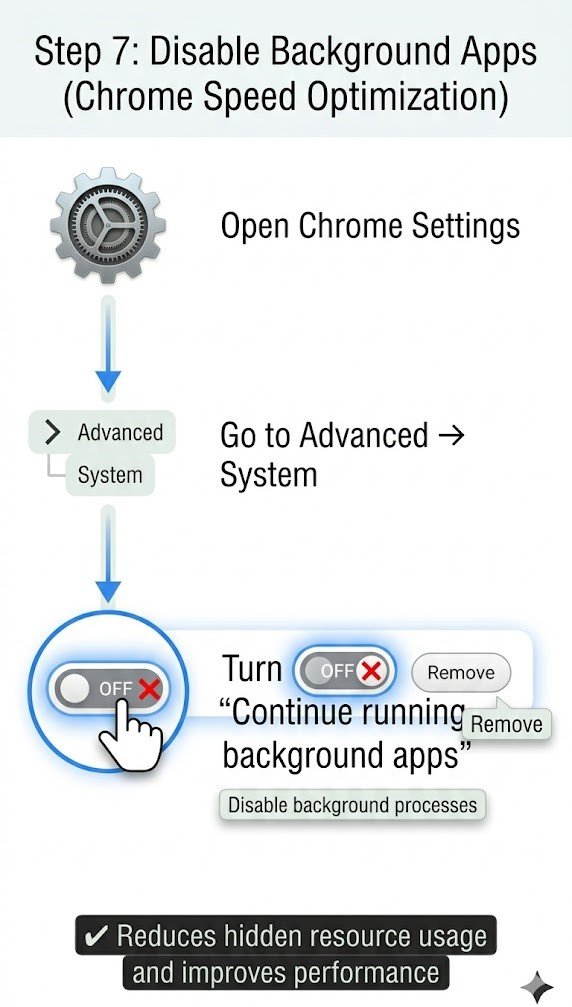
Step 7: Disable Background Apps
- Go to Chrome Settings
- Click Advanced → System
- Turn OFF:
- “Continue running background apps”
✔ Reduces hidden resource usage.
Advanced Tips to Speed Up Chromebook
Now let’s go deeper… this is where real performance gains happen.
1. Use Chromebook Task Manager
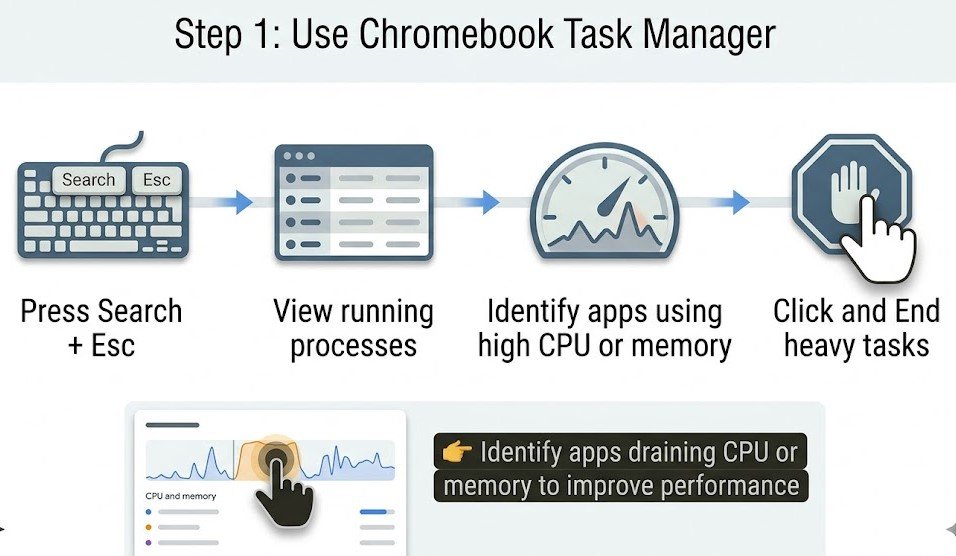
Most people don’t know this exists.
- Press Search + Esc
- View running processes
- End heavy tasks
👉 Identify apps draining CPU or memory.
2. Switch to Lightweight Apps
Instead of heavy apps:
- Use web versions
- Avoid Android apps unless necessary
✔ Web apps are faster on Chromebooks.
3. Use Cloud Storage (Google Drive)
Don’t overload your device.
- Store files in cloud
- Keep local storage minimal
👉 This keeps system responsive.
4. Limit Startup Apps
Some apps auto-launch.
- Disable unnecessary startup apps
- Keep boot process clean
5. Enable Performance Flags (Advanced Users)
- Open: chrome://flags/
- Search for performance settings
- Enable cautiously
⚠️ Only for advanced users.
Last Option: Reset Your Chromebook (Powerwash)
If nothing works… this is your final solution.
What is Powerwash?
It resets your Chromebook to factory settings.
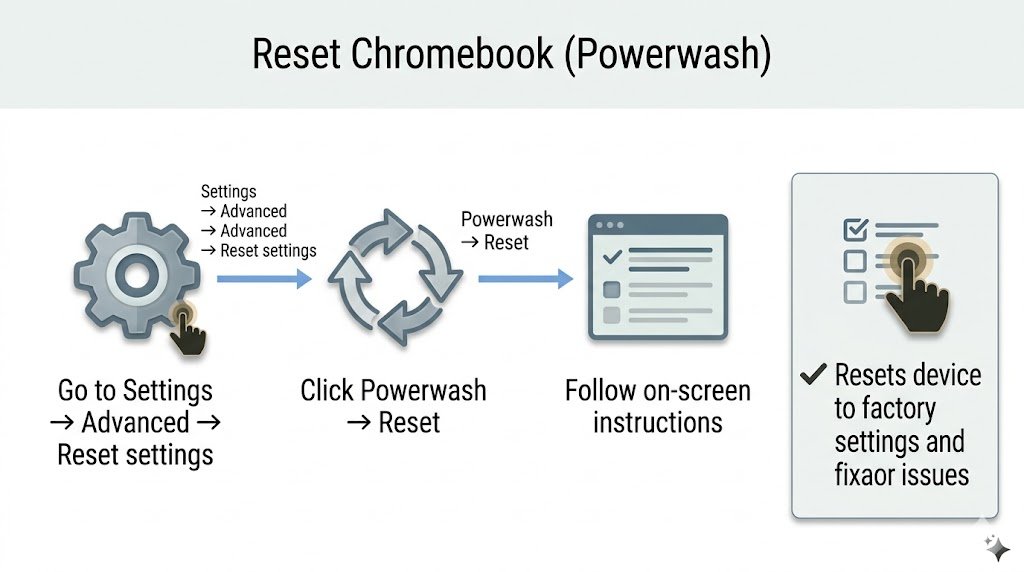
Steps to Powerwash
- Go to Settings → Advanced → Reset settings
- Click Powerwash → Reset
- Follow on-screen instructions
⚠️ Warning
- All local data will be deleted
- Backup important files before proceeding
👉 After reset, your Chromebook will feel like new
Common Mistakes That Slow Down Chromebook
Avoid these at all costs:
❌ Keeping 20+ tabs open
❌ Installing random extensions
❌ Ignoring updates
❌ Filling storage completely
❌ Never restarting device
👉 These small habits cause big slowdowns.
Pro Tips (Expert Advice)
💡 Tip #1: Restart your Chromebook every 2–3 days
💡 Tip #2: Use fewer extensions (max 3–5)
💡 Tip #3: Keep at least 3GB storage free
💡 Tip #4: Avoid heavy multitasking on low-end models
💡 Tip #5: Use Guest Mode for quick, clean browsing
👉 Most people don’t know this…
Guest Mode runs faster because it ignores extensions and saved data.
FAQ (People Also Ask)
1. Why is my Chromebook slow after an update?
Sometimes updates cause temporary lag due to background processes. Restart your device and wait for optimization to complete.
2. How do I clean my Chromebook?
Delete unused files, clear cache, remove extensions, and uninstall unnecessary apps.
3. How much storage should be free on a Chromebook?
Keep at least 20–30% storage free for smooth performance.
4. Can viruses slow down a Chromebook?
Chromebooks are secure, but bad extensions or apps can still affect performance.
5. Why is my Chromebook slow with internet?
Check your Wi-Fi speed. Slow internet can feel like system lag.
6. Does Powerwash improve performance?
Yes. It removes all clutter and resets the system, making it fast again.
7. How long do Chromebooks last?
Typically 5–8 years, depending on usage and updates.
Conclusion
If you’ve been wondering “Why is my Chromebook so slow?” — now you know.
The solution isn’t complicated.
It’s about cleaning, optimizing, and managing resources smartly.
Start with simple fixes like closing tabs and clearing storage…
Then move to advanced tweaks if needed.
And if nothing works — Powerwash it.
👉 Your Chromebook can still be fast…
You just need to unlock its full potential. 🚀