
1. Hook Introduction
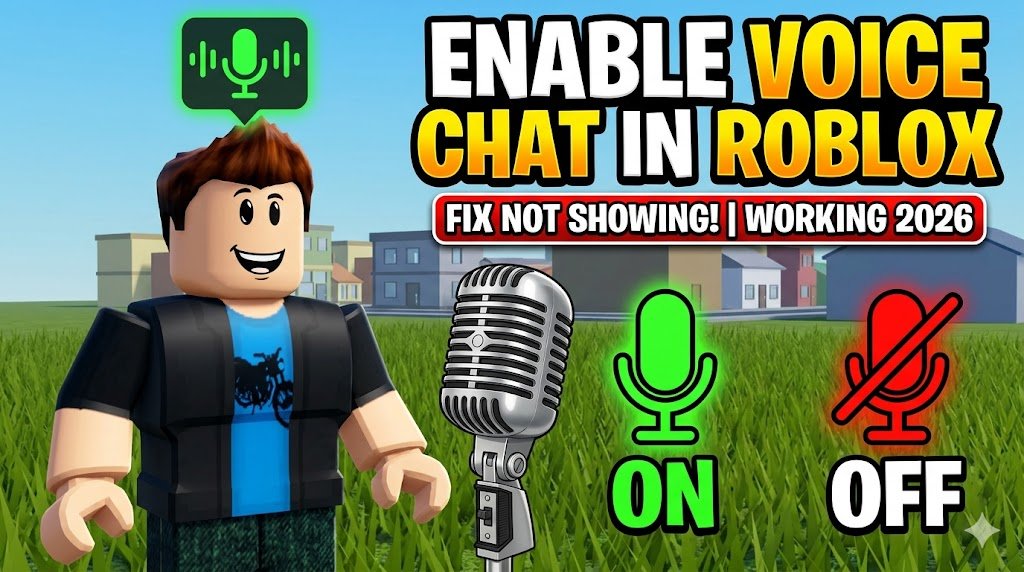
Struggling to talk with friends in Roblox while others are chatting easily? You’re not alone. Many players can’t figure out how to activate voice chat in Roblox, even though the feature is already available.
Here’s the catch: voice chat won’t work unless you meet certain conditions—and most users miss them.
If you want to unlock real-time voice communication and level up your Roblox experience, this guide will walk you through everything—quickly and clearly.
2. ⚡ Quick Answer (Featured Snippet)
To activate voice chat in Roblox, verify your age (13+), enable voice chat in settings, and use a working microphone. Go to Settings → Privacy → Enable Voice Chat, then join a voice-enabled game. Make sure your ID verification is complete, or the feature won’t appear.
3. ✅ Requirements / Important Conditions
Before enabling voice chat, you must meet these conditions:
- ✔️ You must be 13 years or older
- ✔️ Complete age verification using a valid ID
- ✔️ Have a working microphone
- ✔️ Use a voice-chat supported Roblox game
- ✔️ Ensure your account is not restricted or banned
👉 Without ID verification, the voice chat option won’t even show up.
4. 🛠 Step-by-Step Guide to Activate Voice Chat in Roblox
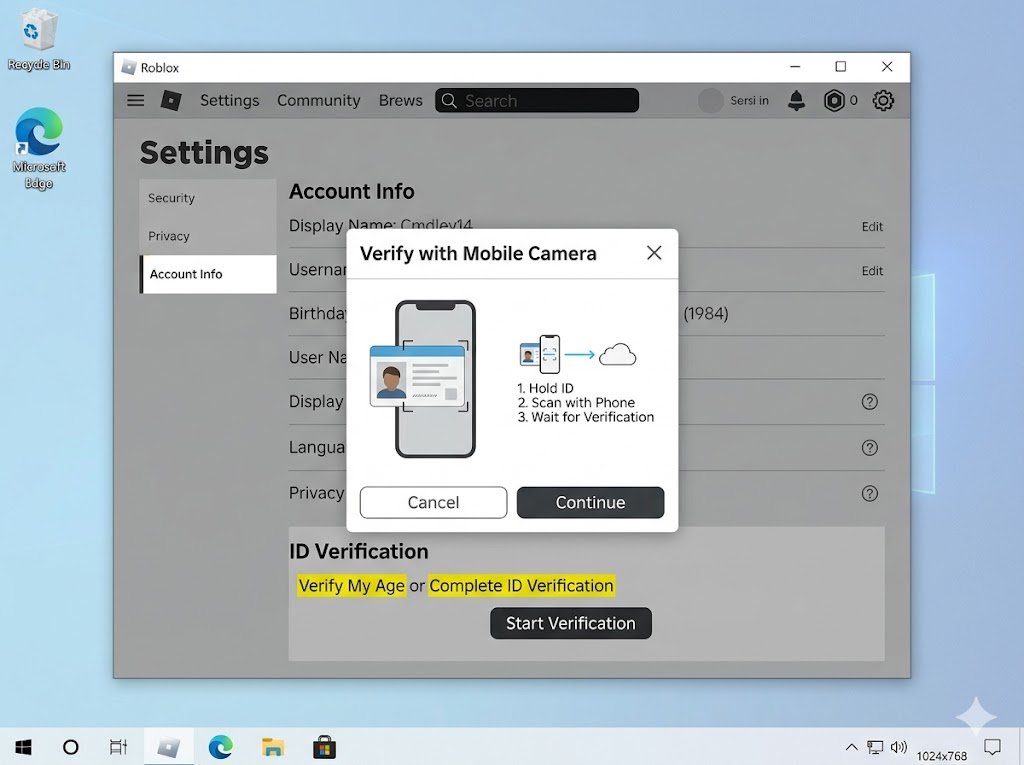
### Step 1: Verify Your Age
- Open Roblox
- Go to Settings
- Click on Account Info
- Complete ID verification using your phone camera
### Step 2: Enable Voice Chat
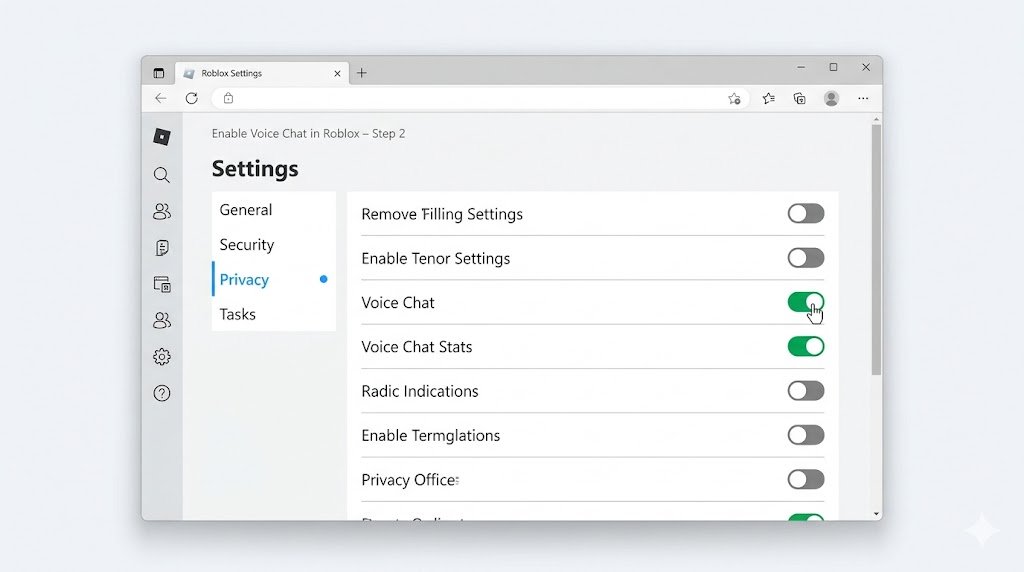
- Go to Settings → Privacy
- Find Voice Chat option
- Toggle it ON
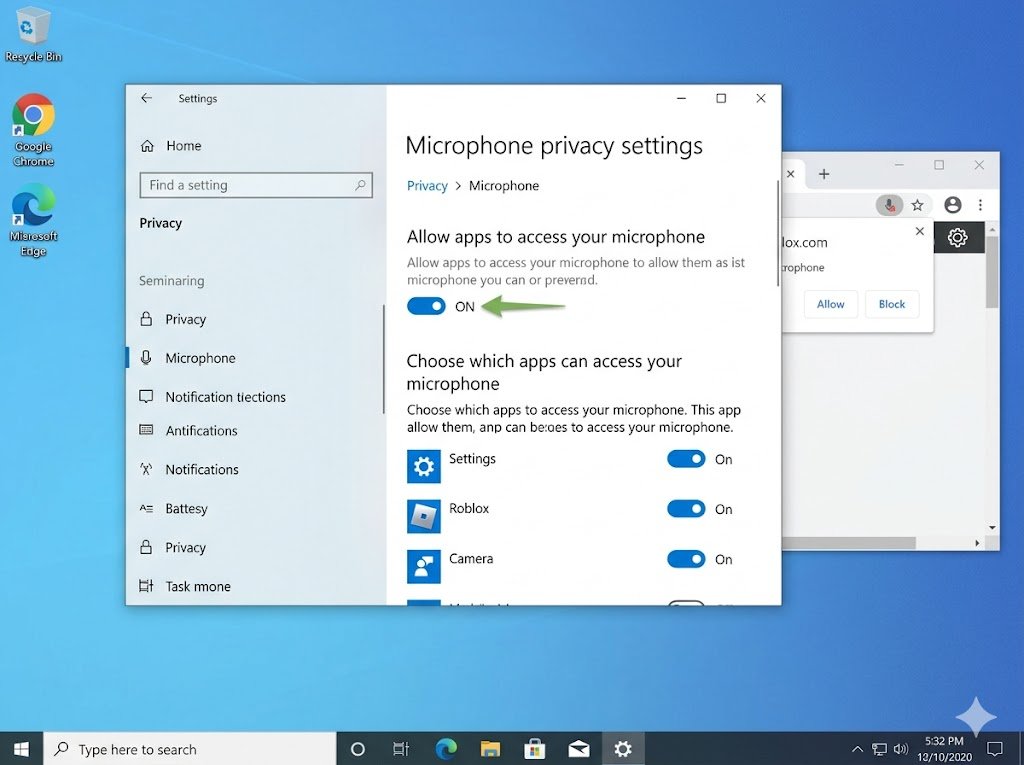
### Step 3: Check Microphone Permissions
- Allow Roblox to access your microphone
- On PC: Check browser/app permissions
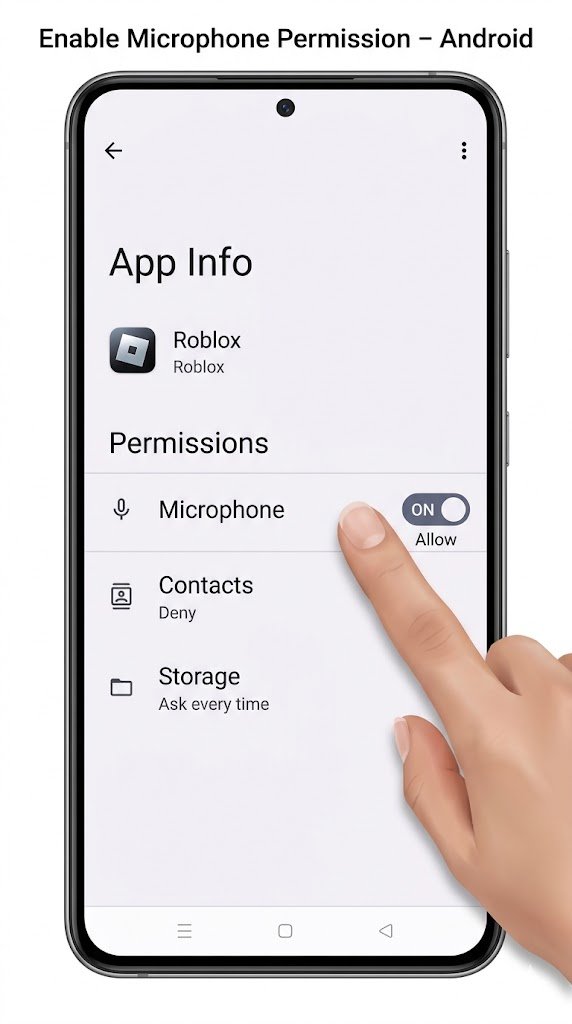
- On mobile: Enable mic access in app settings
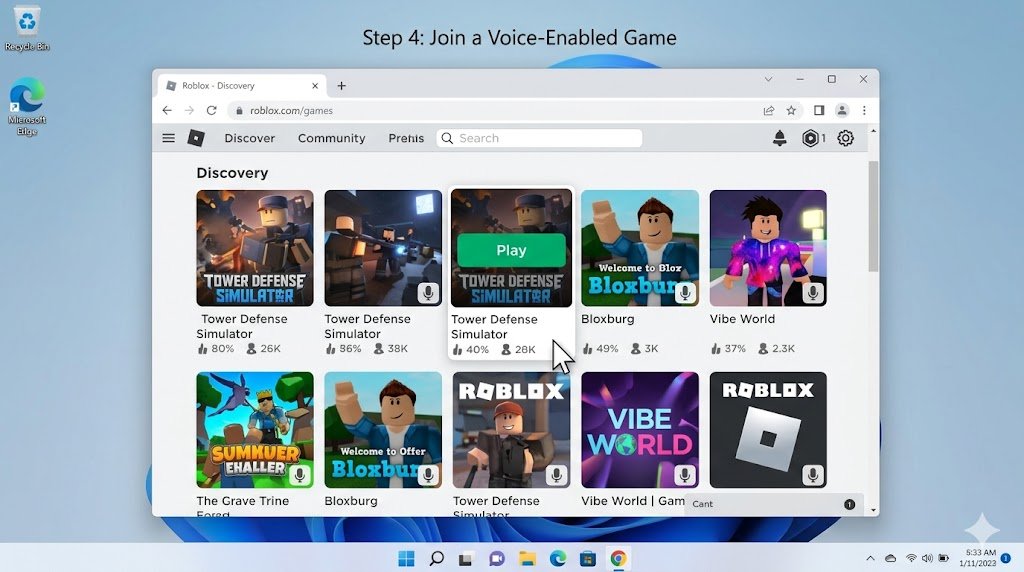
### Step 4: Join a Voice-Enabled Game
- Not all games support voice chat
- Look for games with voice chat icon
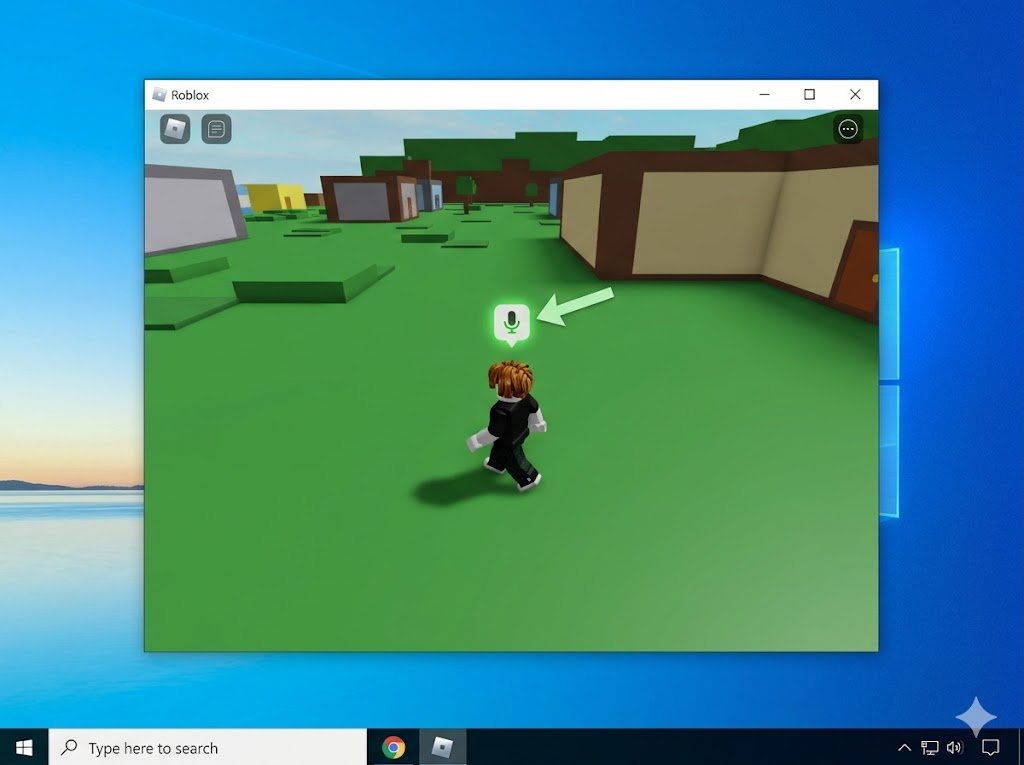
### Step 5: Start Talking
- Once inside a supported game
- You’ll see a mic icon above your avatar
- Speak and enjoy real-time communication 🎤
5. 📱 Platform Breakdown
💻 PC / Laptop
- Works best with browser or Roblox app
- Ensure mic permissions are enabled in system settings
📱 Android
- Go to App Settings → Permissions → Microphone → Allow
- Use updated Roblox version
🍎 iPhone (iOS)
- Go to Settings → Roblox → Microphone ON
- Restart the app after enabling
6. ❌ Common Problems + Fixes
🔴 Voice Chat Option Not Showing
Fix: Complete age verification properly
🔴 Microphone Not Working
Fix: Check device permissions and test mic in other apps
🔴 Voice Chat Not Working in Game
Fix: Ensure the game supports voice chat
🔴 Account Restricted
Fix: Turn off parental controls or contact Roblox support
🔴 Lag or Audio Delay
Fix: Use stable internet (WiFi recommended)
7. ❓ FAQs (Highly Search Optimized)
1. How do I enable voice chat in Roblox without ID?
You can’t. Roblox requires age verification with ID to activate voice chat.
2. Why can’t I see voice chat in Roblox settings?
It usually means your account isn’t verified or under 13.
3. Is Roblox voice chat safe?
Yes, Roblox uses moderation and safety filters, but always be cautious while chatting.
4. Can I use voice chat on mobile?
Yes, voice chat works on both Android and iPhone, if enabled.
5. Which Roblox games support voice chat?
Only selected games support it. Look for voice-enabled experiences.
8. 💡 Pro Tips (Expert Advice)
- 🔥 Use headphones with mic for better clarity
- 🔥 Always test mic before joining games
- 🔥 Play in low-noise environment for clear communication
- 🔥 Keep Roblox updated to avoid bugs
- 🔥 Use private servers for safer chatting
9. 🚀 Conclusion (Action-Based)
Now you know exactly how to activate voice chat in Roblox and fix common issues.
Don’t miss out on the full gaming experience—enable voice chat today and communicate like a pro.
👉 Go ahead, verify your account, turn it on, and start talking with your squad!