

Your searches don’t disappear when you close the tab. They live in browsers, your Google account, apps—and even hidden system logs. The good news? You can wipe them all in minutes if you know where to look.
⚡ Quick Answer (Featured Snippet)
To delete search history completely, clear your browser history (Chrome/Safari/Edge), remove activity from your Google account (My Activity), clear app histories (like YouTube), and reset device-level data (cache, keyboard suggestions). For best results, use “Clear browsing data” + Google auto-delete settings.
🧠 Delete History Everywhere (Master Checklist)
If you want a true clean slate, don’t stop at just your browser.
✔ Use this universal checklist:
- Browser history (Chrome, Safari, Edge, Firefox)
- Google account activity (searches, voice, YouTube)
- Mobile apps (YouTube, Play Store, Maps)
- Device-level data (cache, keyboard memory, DNS)
👉 This is where most people miss:
They delete browser history but forget Google account tracking—so their searches still exist.
🌐 Browser Methods (Step-by-Step)
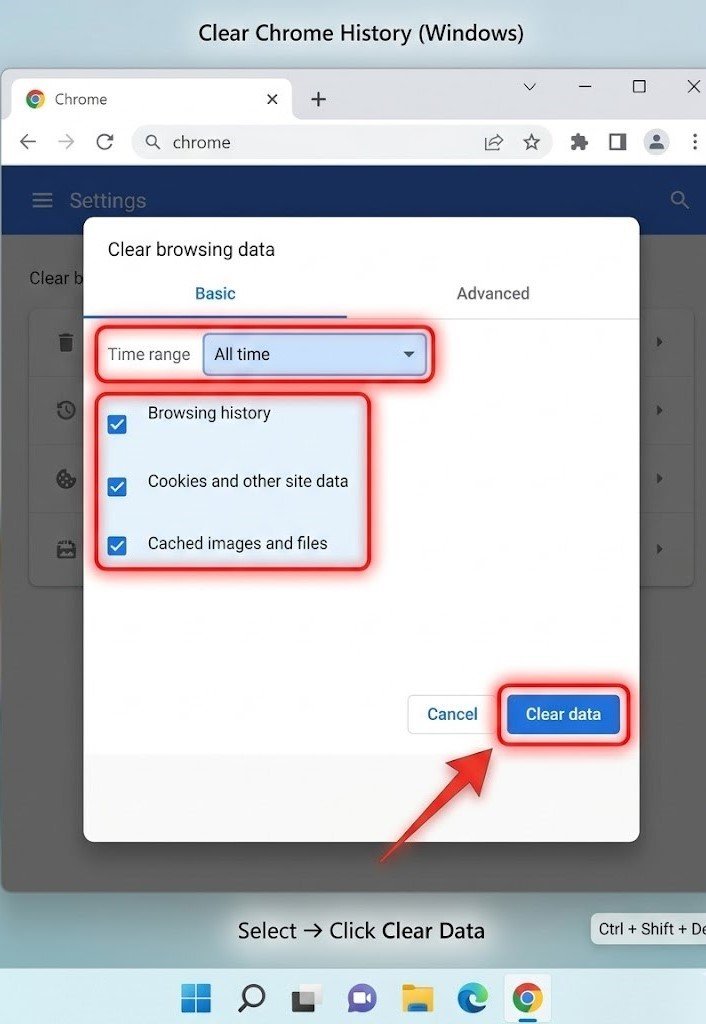
🔹 Google Chrome (Desktop)
Steps:
- Press
Ctrl + Shift + Del - Select All time
- Check:
- Browsing history
- Cookies
- Cached images
- Click Clear data
Time: 30 seconds
Deletes: History, cookies, cache
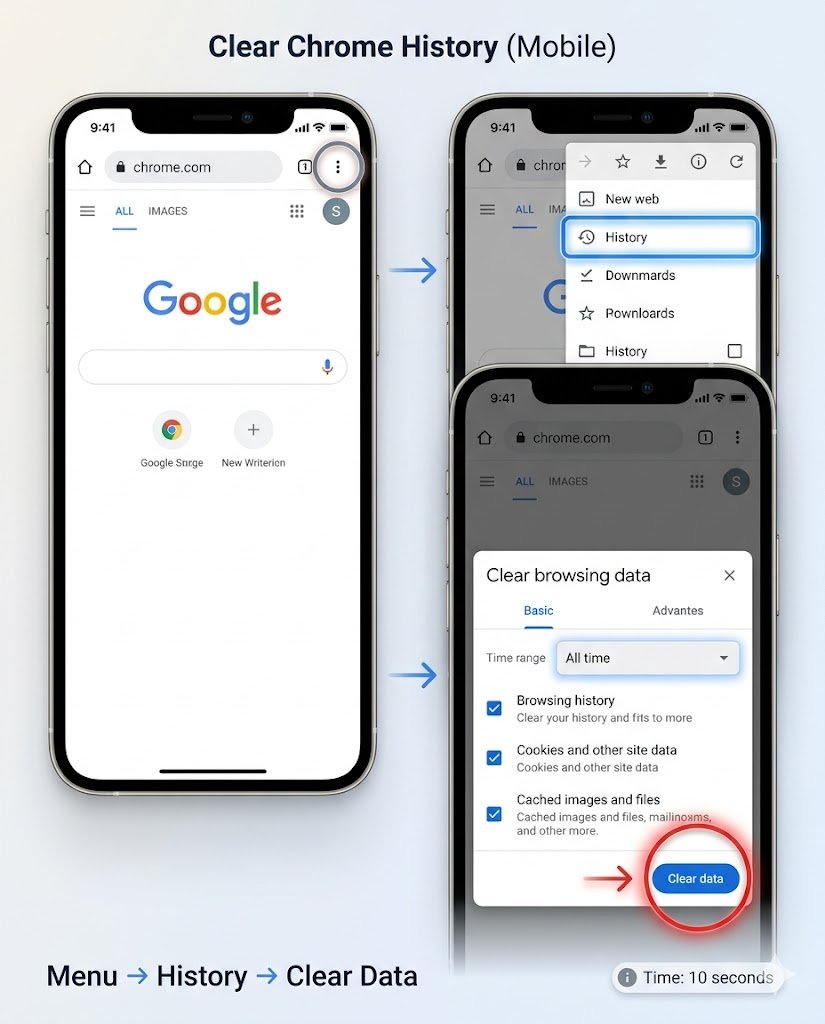
🔹 Chrome (Mobile – Android/iPhone)
- Open Chrome
- Tap 3 dots → History
- Tap Clear browsing data
- Select time range → Clear data
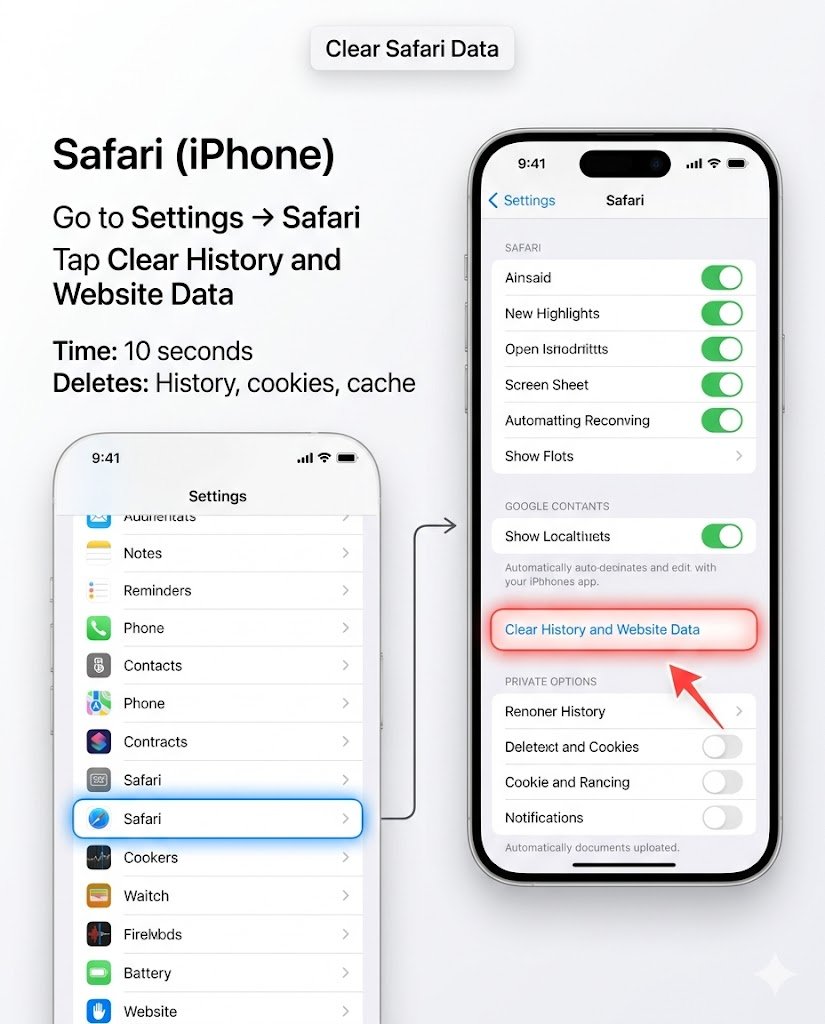
🔹 Safari (iPhone)
- Go to Settings → Safari
- Tap Clear History and Website Data
Time: 10 seconds
Deletes: History, cookies, cache
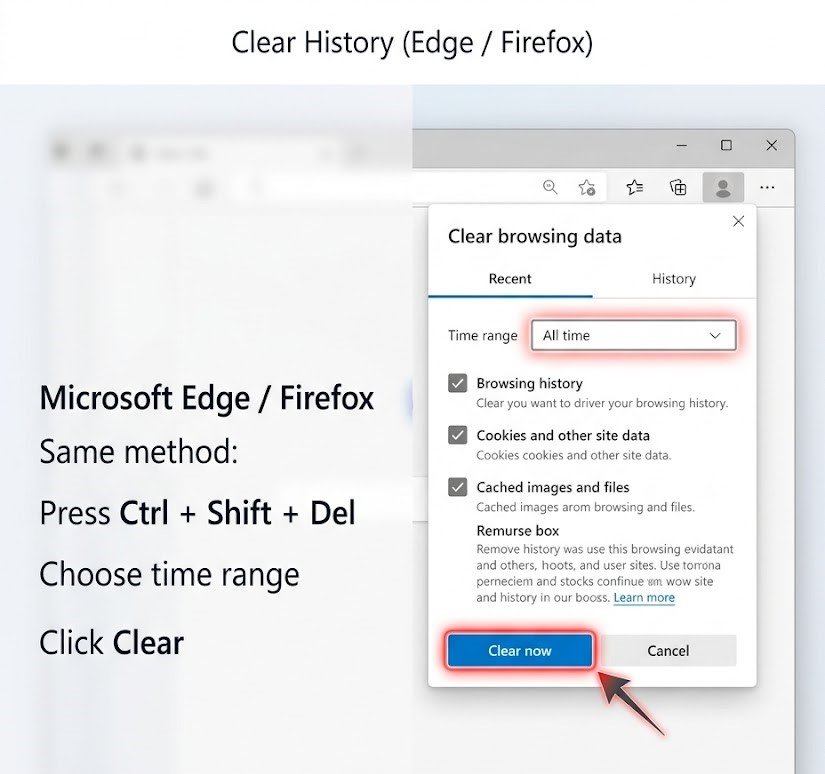
🔹 Microsoft Edge / Firefox
Same method:
- Press
Ctrl + Shift + Del - Choose time range
- Click Clear
🔥 Google Account (Most Important Step)
Even after clearing your browser, Google may still store everything.
🔹 Delete Google Search Activity
- Go to: myactivity.google.com
- Click Delete → All time
- Confirm
🔹 Set Auto-Delete (Smart Move)
- Go to Activity controls
- Turn on auto-delete:
- 3 months
- 18 months
- 36 months
👉 This keeps your history clean automatically.
🔹 Delete Voice & YouTube History
Inside My Activity:
- Filter by Voice
- Filter by YouTube
Delete separately for full privacy.
📱 Phone-Specific Cleanup
🔹 Android
- Go to Settings → Apps
- Select browser (Chrome, etc.)
- Tap:
- Storage → Clear cache
- (Optional) Clear data
🔹 iPhone
- Go to Settings → Safari
- Tap Clear History and Website Data
🕵️ Hidden Places (Most Articles Don’t Tell You)
Here’s the real secret layer 👇
🔸 DNS Cache (Basic Level)
Your system may store recent lookups.
👉 Quick fix (Windows):
- Open Command Prompt
- Type:
ipconfig /flushdns🔸 Keyboard Suggestions Memory
Your phone keyboard remembers what you type.
👉 Fix:
- Reset keyboard dictionary (Android/iPhone settings)
🔸 App Search History
Apps store their own data:
- YouTube → Clear watch/search history
- Play Store → Clear search history
- Maps → Timeline & search data
👉 This is the hidden part most people skip.
⚡ 1-Click Clean Shortcuts
💻 Windows:
Ctrl + Shift + Delete📱 Mobile:
- Chrome → Clear browsing data
- Safari → Clear history
Fastest way to clean instantly.
🔐 Privacy Pro Tips (Stay Clean Forever)
✔ Use Incognito Mode
- No history saved
- No cookies stored
✔ Turn Off Tracking
Go to Google Activity Controls:
- Pause Web & App Activity
- Pause Location History
✔ Enable Auto-Delete
Let Google delete your history automatically.
❓ FAQ (SEO Boost Section)
🔹 Does deleting history delete everything?
No. It removes local browser data, but Google account activity may still exist unless deleted separately.
🔹 Can someone still see my searches?
Yes, if:
- You didn’t delete Google activity
- You’re on a shared network
- Data is cached elsewhere
🔹 Cache vs History – What’s the difference?
- History: List of websites visited
- Cache: Stored files (images, scripts)
👉 Clearing both = better privacy + performance
🎯 Final Thoughts
Deleting search history isn’t just one click—it’s a multi-layer cleanup.
Browser + Google + Apps + Device = Complete privacyOnce you follow this full method, your data is actually gone—not just hidden.
👉 Action step:
Do the browser clean + Google My Activity delete right now—it takes less than 2 minutes and makes a real difference.