
Typing feels slow… letters appear late… even on a fast PC. You’re hitting keys at 80 words per minute, but your screen is still processing a sentence you finished five seconds ago. It’s not just annoying; it’s a productivity killer that makes you want to toss your hardware out the window.
Here’s what’s REALLY causing it and how to fix it without calling a technician.
⚡ Quick Fix: How to Stop Keyboard Delay Now
To fix keyboard delay instantly: 1. Disable Filter Keys in Windows Accessibility settings (this is the #1 cause). 2. Adjust Keyboard Repeat Rate in the Control Panel. 3. Update Keyboard Drivers via Device Manager. 4. Swap USB ports (use a 2.0 port instead of 3.0 for wireless dongles to avoid interference).
What Exactly is Keyboard Delay?
In technical terms, we call this Input Lag. It is the time gap between you physically depressing a key and the OS rendering that character on your screen.
Normally, this happens in milliseconds—so fast you can’t perceive it. When it becomes noticeable (lagging), it’s usually because the “handshake” between your hardware and software has been interrupted or delayed by a bottleneck.
The Real Causes (The Stuff Most Manuals Skip)
Why does a perfectly good keyboard start acting like it’s thinking through every letter? It’s rarely a “broken” keyboard. It’s usually one of these:
- Input Buffer Lag: Your PC is busy. It’s holding your keystrokes in a “waiting room” (buffer) because the CPU is occupied with something else.
- The 2.4GHz Wireless War: If you use a wireless keyboard, your Wi-Fi router, microwave, and even your USB 3.0 ports are all screaming on the same frequency, causing “packet loss” for your typing.
- Filter Keys (The Stealth Saboteur): This accessibility feature is designed to ignore brief or repeated keystrokes. It often turns itself on by accident, making your keyboard feel “heavy” or slow.
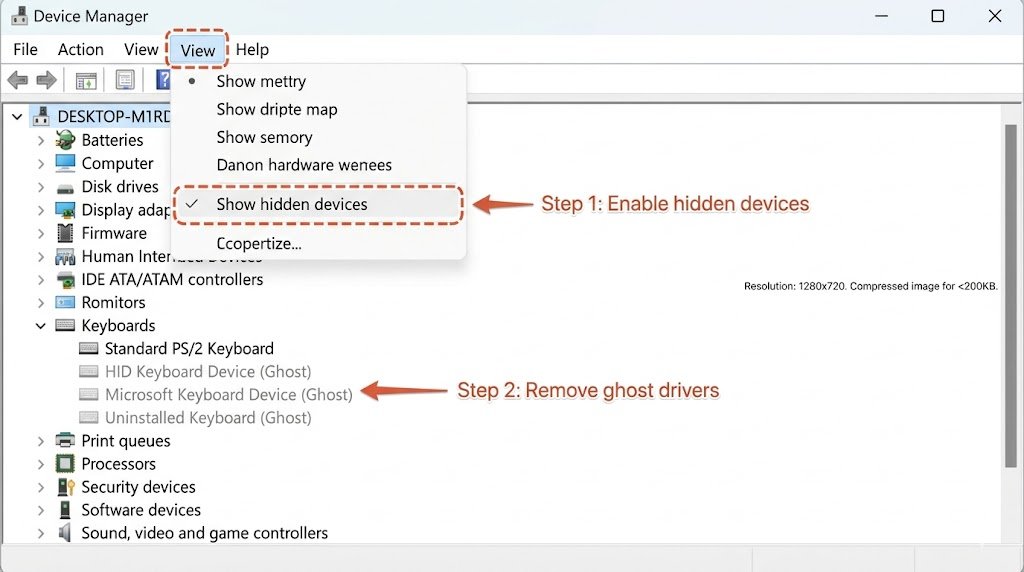
- Driver Ghosting: An old driver from a keyboard you threw away three years ago might still be trying to talk to your system, causing a conflict.
- CPU Thermal Throttling: If your laptop is overheating, it slows down everything to save itself, including the speed at which it processes HID (Human Interface Device) inputs.
🛠️ The Action Plan: Step-by-Step Fixes
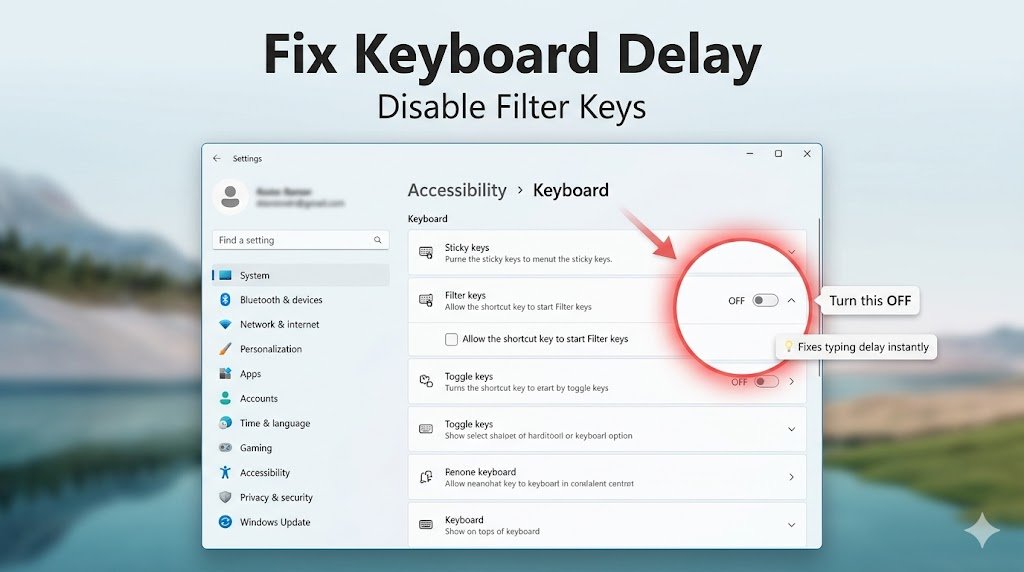
1. Disable Filter Keys (The Most Likely Culprit)
Why it works: Filter Keys tells Windows to ignore “brief” taps. If your tap is faster than the setting, the letter won’t appear.
- Steps: Go to Settings > Accessibility > Keyboard. Find Filter Keys and toggle it to Off. Also, uncheck “Allow the shortcut key to start Filter Keys” so you don’t accidentally re-enable it by holding Shift.
- Time: 1 minute.
- Risk: Zero.
2. Adjust the Keyboard Repeat Rate
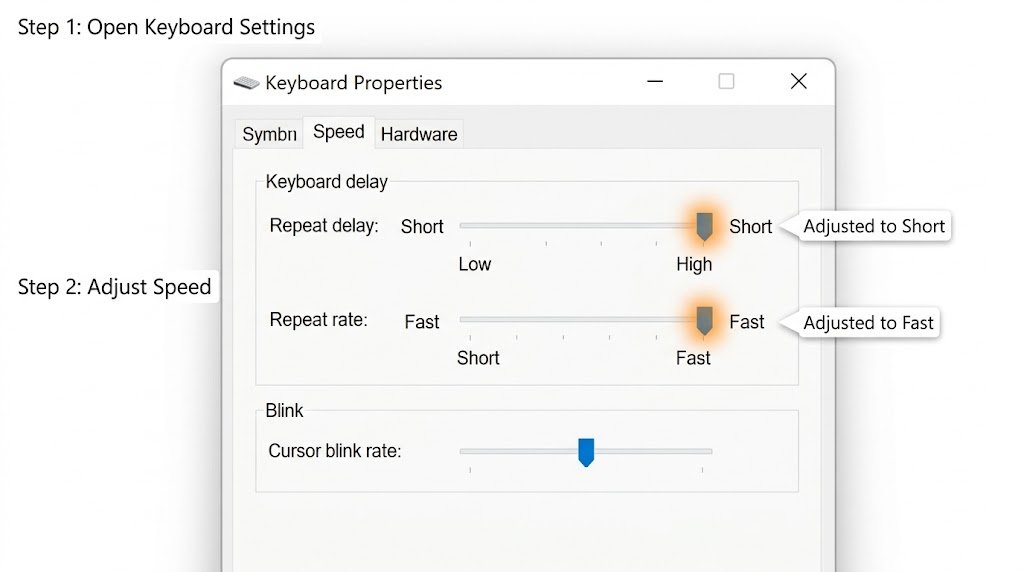
Why it works: Sometimes the hardware is fine, but the software “delay” setting is turned up too high.
- Steps: Search for Control Panel > Keyboard. In the Speed tab, move the Repeat Delay slider to “Short” and the Repeat Rate to “Fast.”
- Time: 1 minute.
- Risk: Zero.
3. The Wireless Interference Trick (For USB Dongles)
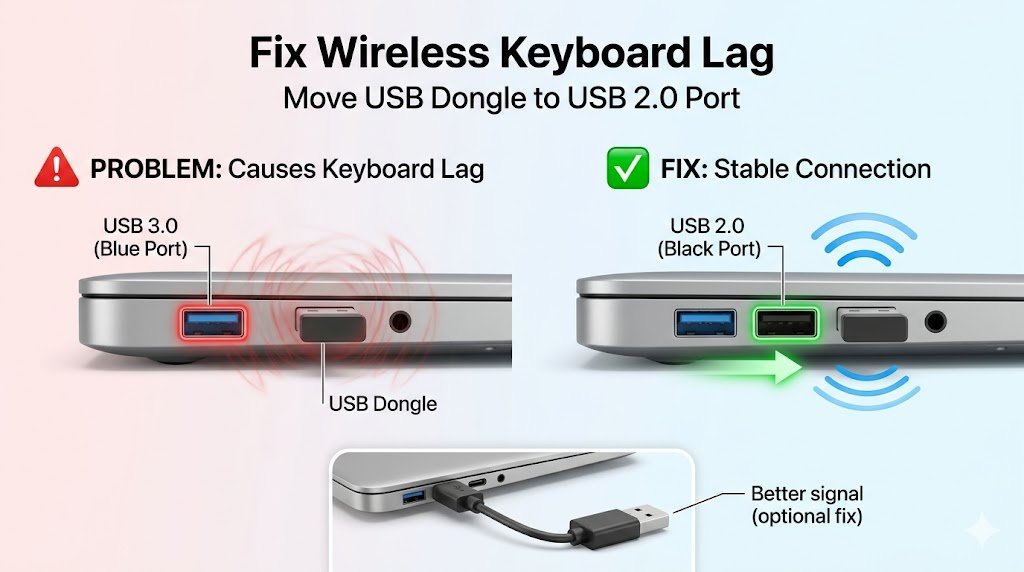
Here’s the part nobody tells you: USB 3.0 ports (the blue ones) generate radio frequency interference that specifically messes with 2.4GHz wireless receivers.
- The Fix: If your wireless keyboard is lagging, move the USB dongle to a USB 2.0 port (the black ones). If you only have 3.0 ports, use a short USB extension cable to move the dongle away from the laptop’s body.
- Time: 30 seconds.
- Risk: Zero.
4. Hunting Driver Conflicts
Why it works: Over time, Windows stacks drivers for every mouse and keyboard you’ve ever plugged in. These “ghost” drivers cause lag.
- Steps: Right-click Start > Device Manager. Click View > Show hidden devices. Expand Keyboards. Right-click and Uninstall every greyed-out (translucent) keyboard icon. Restart your PC.
- Time: 5 minutes.
- Risk: Low.
5. Check for “CPU Spikes” from Background Apps
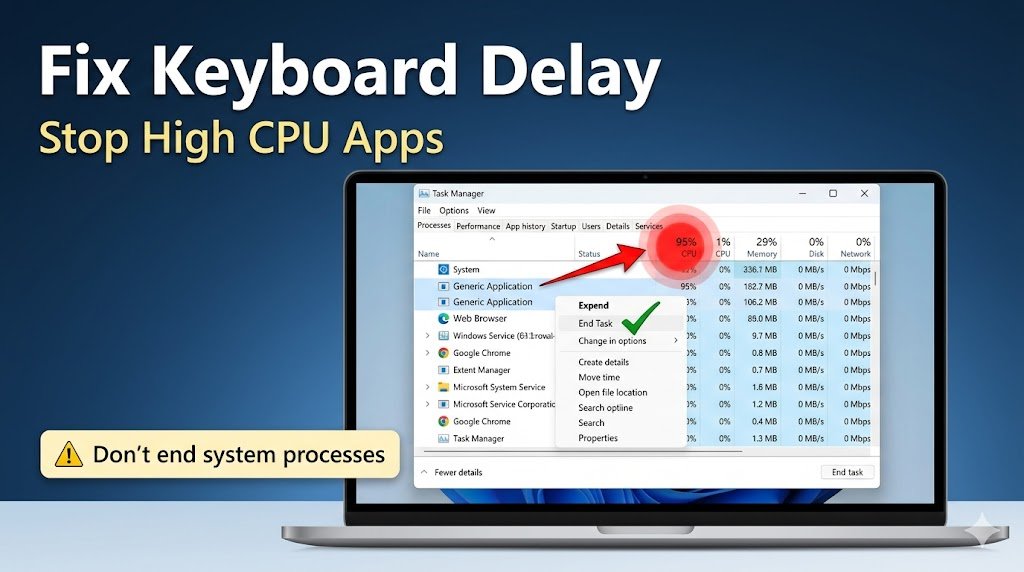
Why it works: If an app like Chrome or a Windows Update is eating 100% of your CPU, your keyboard input gets de-prioritized.
- Steps: Press Ctrl + Shift + Esc. Look at the CPU column. If something is over 80%, right-click it and select End Task.
- Time: 2 minutes.
- Risk: Medium (don’t close system processes!).
Special Scenarios
🎮 If Delay Happens Only in Games
This is likely Frame-Rate Lag rather than keyboard lag. If your GPU is struggling to render the game, it can’t show the results of your keystrokes fast enough.
- Fix: Turn off V-Sync in your game settings. V-Sync adds intentional input lag to prevent screen tearing.
💻 If Delay Happens Only on Laptop Keyboards
This is often related to Power Management. Windows tries to save battery by “sleeping” the keyboard controller after just a few seconds of inactivity.
- Fix: In Device Manager, find your Keyboard, right-click Properties, go to Power Management, and uncheck “Allow the computer to turn off this device to save power.”
💡 Pro Tips (The Differentiators)
- The DISM Command: If your lag is system-wide, your Windows “image” might be corrupted. Open Command Prompt as Admin and run
DISM /Online /Cleanup-Image /RestoreHealth. This refreshes the underlying files that manage hardware communication. - Polling Rate: If you have a high-end gaming keyboard, check its software (G-Hub, Synapse). If your polling rate is set to 8000Hz but your CPU is old, lower it to 1000Hz. A high polling rate can actually choke a weaker processor.
- The “Static Drain”: Believe it or not, static electricity in the motherboard can lag sensors. Shut down, unplug everything, and hold the power button for 30 seconds to drain the capacitors.
FAQ: Your Lag Questions Answered
Q: Why is my keyboard lagging suddenly? A: Usually a recent Windows Update replaced a specialized driver with a generic one, or an accessibility feature (Filter Keys) was triggered by holding down a key too long.
Q: Is keyboard delay a virus? A: Rarely, but keyloggers (malware that records your typing) can cause lag because they are intercepting and processing every letter before letting it through. Run a scan with Windows Defender just in case.
Q: Can low RAM affect typing speed? A: Yes. If your RAM is full, the PC uses “Virtual Memory” (your hard drive) which is much slower. This creates a massive bottleneck for input processing.
Final Thoughts
Keyboard lag is almost never a reason to buy a new computer. It is a communication breakdown. By following the Filter Keys and Wireless Interference fixes, you’ll solve 90% of lag issues in under five minutes.
Start with the Filter Keys toggle—it’s the “hidden” switch that fixes more “broken” keyboards than anything else. Now, go back to typing at full speed!