
You’re mid-scroll, deep in a project, and suddenly… nothing. Your finger slides across the touchpad, but the cursor sits frozen like it’s mocking you. You restart, you pray to the tech gods, and still—dead silence from your hardware.
Most “tech experts” will tell you to check the Fn key and call it a day. But if you’re reading this, you’ve probably already tried the basics. Touchpad failures in 2026 are rarely just about a “disabled button”; they are often silent conflicts between your OS precision drivers and power management settings.
Here is the definitive, human-friendly guide to reclaiming your cursor without spending $100 at a repair shop.
🔍 The Anatomy of a Frozen Cursor: What’s Actually Happening?
Before we dive into the “how,” we need to identify the “why.” Touchpad issues generally fall into three buckets:
- Software Handshake Failure: Windows or macOS “forgot” the hardware exists after a sleep cycle or update.
- Driver Ghosting: An old driver is haunting your system, blocking the new one from working.
- Static Build-up: Believe it or not, physical electricity can “lock” a capacitive sensor.
🛠️ The Action Plan: Step-by-Step Recovery
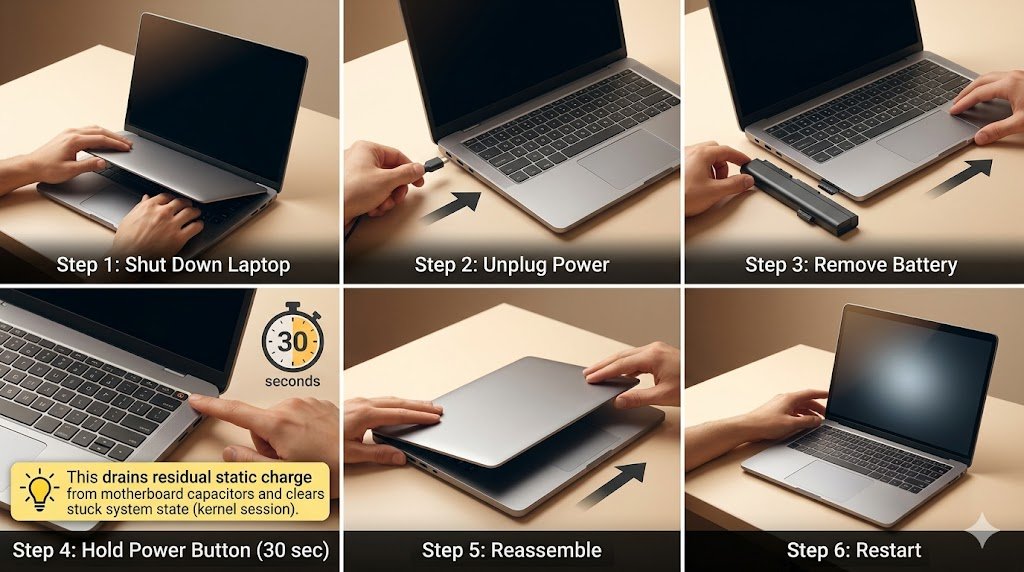
1. The “Hard Reset” (Not just a restart)
A standard restart often saves “kernel session” data to make booting faster, which means it also saves the bug.
- The Fix: Shut down your laptop completely. Unplug the power cable. If you have a removable battery, take it out. Hold the Power Button for 30 seconds. This drains the residual static charge from the motherboard capacitors. Reassemble and boot.
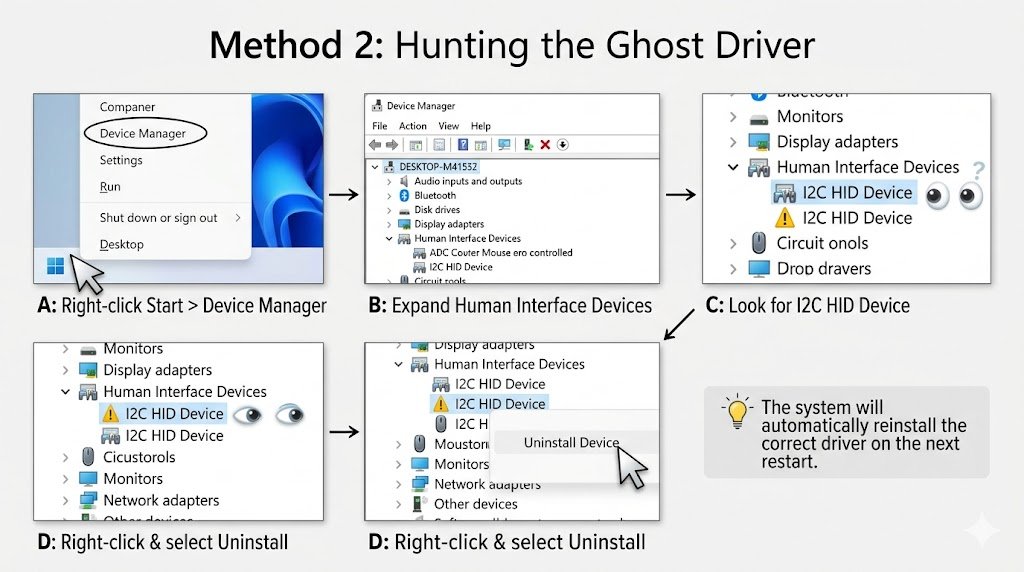
2. Hunting the “Ghost” Driver
Sometimes, Windows installs a “Generic PS/2 Mouse” driver that fights with your “I2C HID Device” (the actual touchpad).
- The Fix: 1. Right-click the Start button > Device Manager. 2. Expand Human Interface Devices (not just “Mice”). 3. Look for I2C HID Device. If it has a yellow warning triangle, right-click and select Uninstall Device. 4. Don’t worry—restart your laptop, and the system will be forced to “handshake” with the hardware properly.
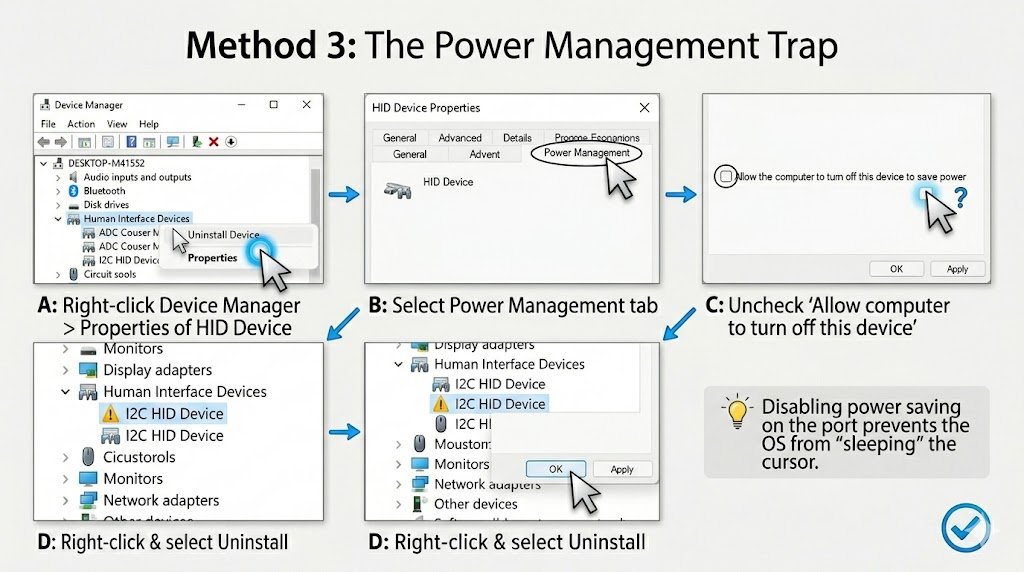
3. The Power Management Trap
Laptops are obsessed with saving battery. Sometimes, they “turn off” the touchpad port to save power and forget to turn it back on.
- The Fix: In Device Manager, find your Touchpad/HID device, right-click Properties, go to the Power Management tab, and uncheck “Allow the computer to turn off this device to save power.”
💡 Pro Insight: What Most Articles Miss
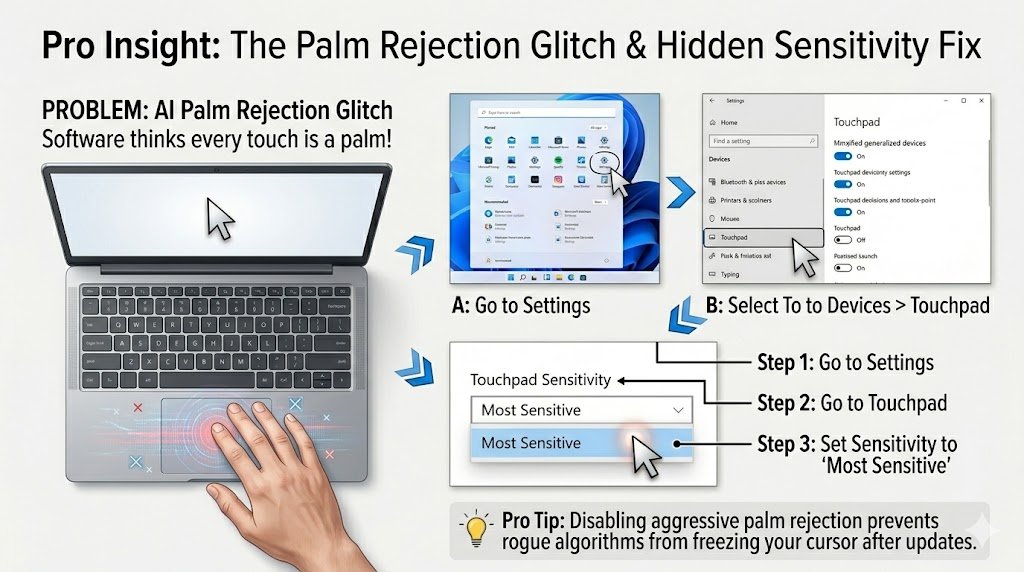
The “Palm Rejection” Glitch. Modern “Precision Touchpads” use AI to ignore your palm while typing. If this software glitches, it thinks every touch is a palm and ignores you entirely.
Pro Tip: Go to Settings > Devices > Touchpad and change the “Touchpad Sensitivity” to Most Sensitive. This often overrides aggressive palm-rejection algorithms that have gone rogue after a software update.
🚨 Real-World Scenario: The “Windows Update” Curse
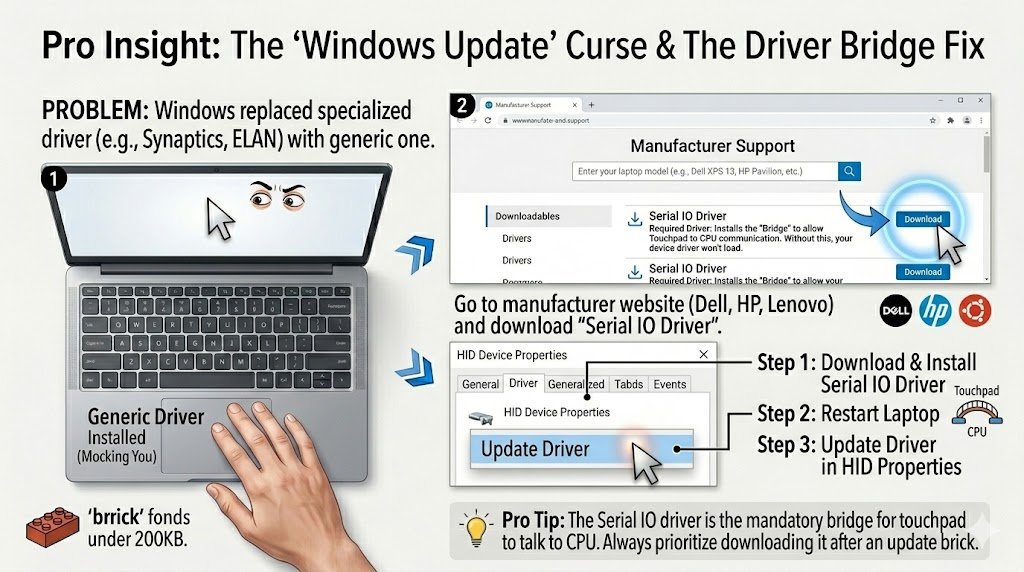
We’ve all seen it: your laptop works fine, Windows updates overnight, and by morning, the touchpad is a brick. This usually happens because Windows replaced your manufacturer’s specialized driver (Synaptics or ELAN) with a generic Microsoft one.
The Solution: Always visit your laptop manufacturer’s website (Dell, HP, Lenovo, etc.) and download the “Serial IO Driver.” This is the “bridge” that allows the touchpad to talk to the CPU. Without it, the touchpad driver won’t even install.
🎯 Summary Checklist
- Static Drain: Hold power for 30 seconds.
- Check the “HID” Section: It’s not always under “Mice.”
- Disable Power Saving: Stop the OS from “sleeping” your cursor.
- BIOS Check: If the cursor doesn’t move in the BIOS menu, it’s 100% a hardware cable issue.