
Tried resetting your PC to fix issues… and now you’re stuck with the message “there was a problem resetting your PC”?
Frustrating, right? You expected a fresh start—but instead, Windows refuses to reset and throws you back to square one.
Don’t worry. This is a very common Windows reset error—and in most cases, you can fix it yourself in under 30 minutes.
Quick Fix (Instant Solution)
If you see “there was a problem resetting your PC”, try these quick fixes:
- Run SFC scan: Open Command Prompt (Admin) → type
sfc /scannow - Use DISM tool:
DISM /Online /Cleanup-Image /RestoreHealth - Try reset via Advanced Startup (Recovery Mode)
👉 These fix corrupted system files—the most common cause of this error.
Why This Error Happens
Let’s keep it simple.
This error usually shows up when Windows can’t access or repair the files needed to reset your system.
Common causes:
- ❌ Corrupted system files
- ❌ Broken Windows update
- ❌ Missing recovery image
- ❌ Disk errors or bad sectors
- ❌ Third-party software interference
In most cases I’ve seen, corrupted system files after a failed update are the main culprit.
Best Fixes (Step-by-Step)
✅ Method 1: Run System File Checker (Easiest Fix)
Risk Level: Low
Time Required: 10–15 minutes
This method works fastest in most cases.
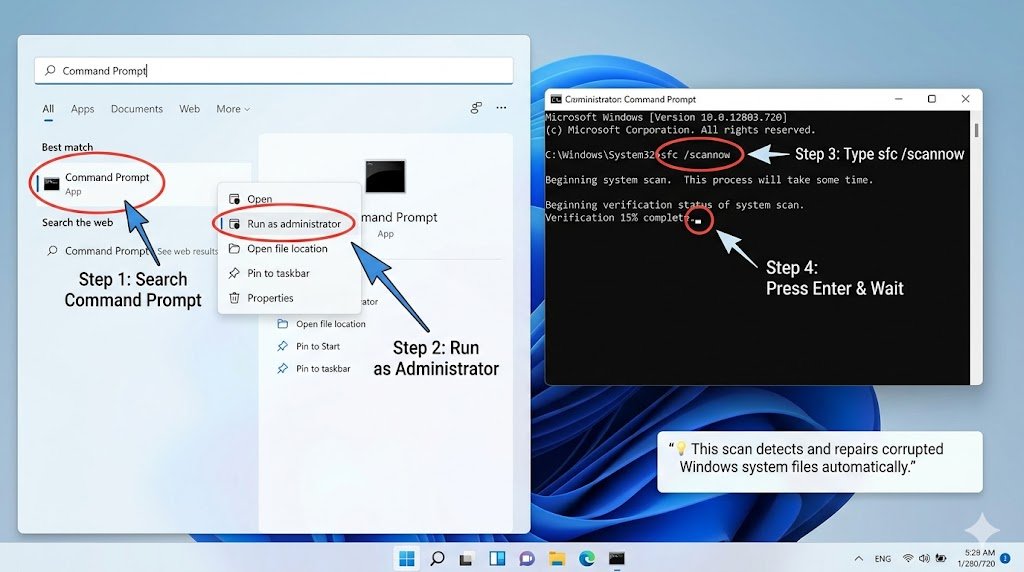
- Search Command Prompt
- Right-click → Run as Administrator
- Type:
sfc /scannow - Press Enter and wait
👉 This scans and repairs broken Windows files.
✅ Method 2: Use DISM Tool (Deeper Repair)
Risk Level: Low
Time Required: 15–20 minutes
If SFC doesn’t fix it, use this.
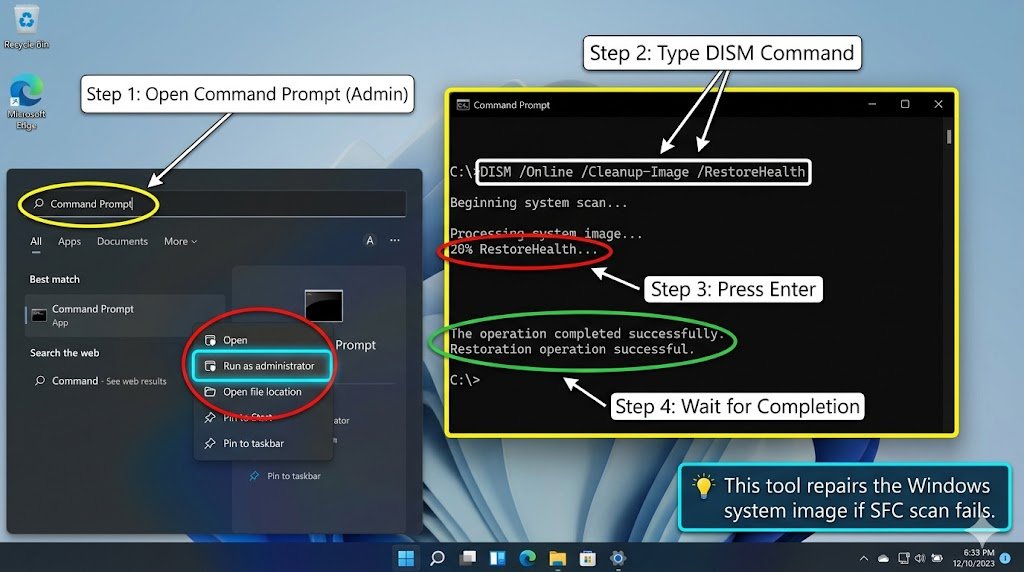
- Open Command Prompt (Admin)
- Run:
DISM /Online /Cleanup-Image /RestoreHealth - Wait for completion
👉 This repairs the Windows image itself.
✅ Method 3: Reset from Advanced Startup (Most Effective)
Risk Level: Medium
Time Required: 20–30 minutes
This bypasses normal system errors.
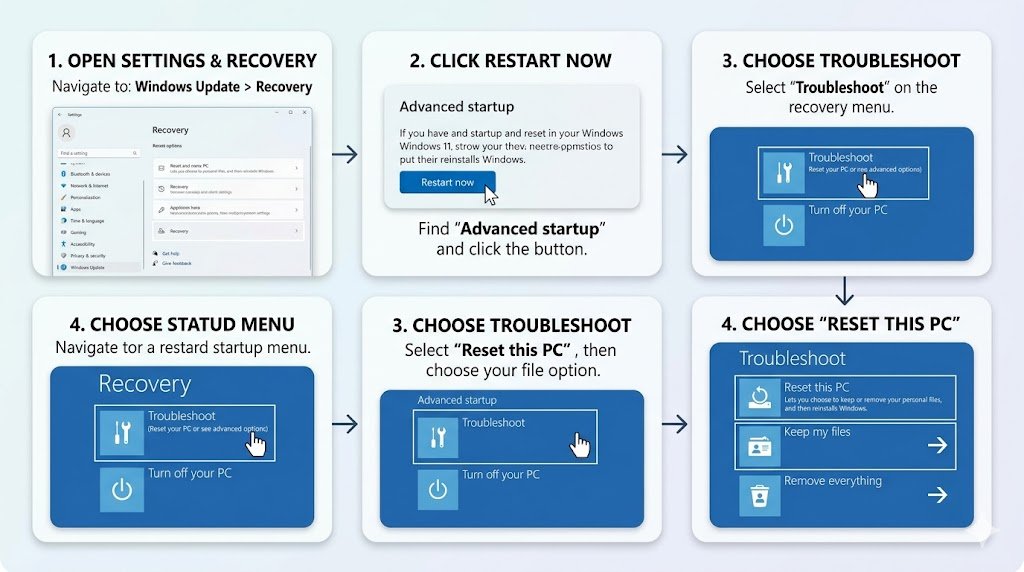
- Go to Settings → Update & Security → Recovery
- Click Restart Now under Advanced Startup
- Choose:
- Troubleshoot
- Reset this PC
- Select:
- Keep my files OR Remove everything
👉 This method solves most “Windows reset failed” cases.
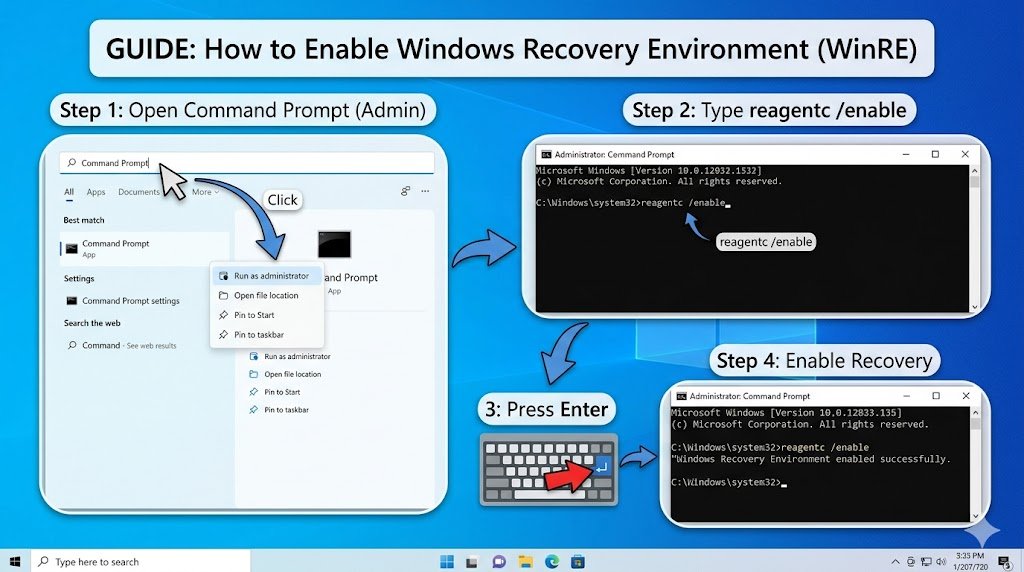
✅ Method 4: Enable Recovery Environment (Advanced Fix)
Risk Level: Medium
Time Required: 10 minutes
Sometimes recovery is disabled.
- Open Command Prompt (Admin)
- Run:
reagentc /enable - Try resetting again
What If Nothing Works?
If you still see “there was a problem resetting your PC”, don’t keep retrying blindly.
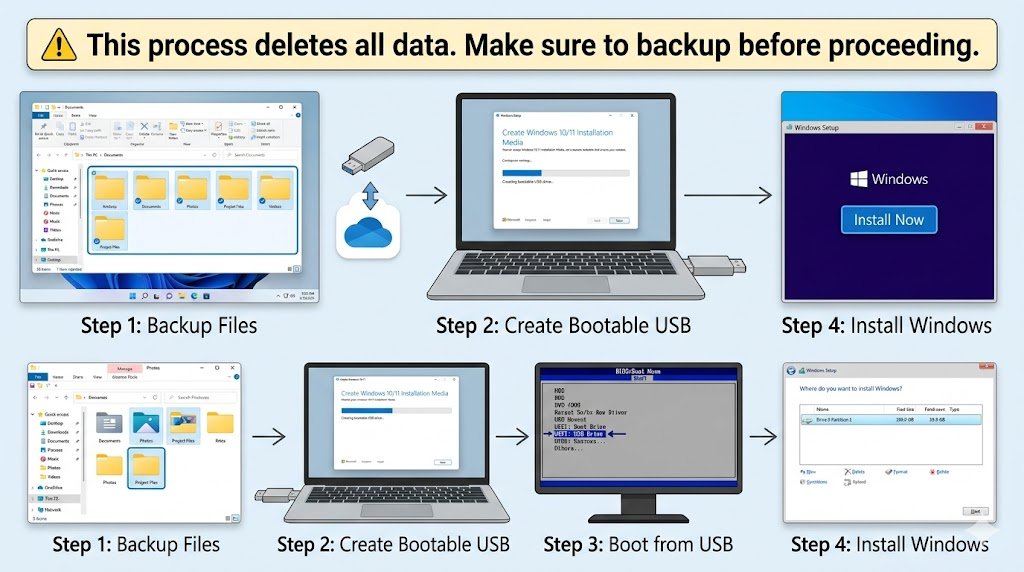
🔥 Final Solution: Clean Install Windows
Risk Level: High
Time Required: 45–90 minutes
- Backup all important files
- Create a Windows bootable USB
- Boot from USB
- Install Windows fresh
👉 This completely removes all errors—but also deletes everything.
Important: Always backup before doing this.
Common Mistakes to Avoid
🚫 Trying reset repeatedly without fixing system errors
🚫 Ignoring corrupted files (SFC/DISM not run)
🚫 Not checking disk health
🚫 Cancelling reset midway
🚫 Not backing up data before advanced fixes
One mistake can make recovery harder—so follow steps carefully.
Pro Tips (Insider Insights)
💡 Use “Keep my files” first
Avoid data loss unless necessary
💡 Check disk health
Run:
chkdsk /f /r💡 Disable antivirus temporarily
Some security tools block reset
💡 Avoid low battery during reset (laptops)
Power interruption can corrupt system
💡 Use recovery mode instead of normal reset
More stable and reliable
FAQs
1. What does “there was a problem resetting your PC” mean?
It means Windows failed to access or repair required system files during reset.
2. Can I fix this error without losing data?
Yes. Use Keep my files option or run SFC/DISM first.
3. Why does Windows reset keep failing?
Usually due to corrupted system files or broken recovery environment.
4. Is clean install the only solution?
No. Try all fixes first—but clean install is the final guaranteed fix.
5. How long does PC reset take?
Typically 20–60 minutes depending on system speed.
6. Will this error damage my PC?
No, but repeated failed resets can worsen file corruption.
7. Can I stop Windows reset once started?
Not recommended. It may corrupt your system further.
SEO Boosters (For Ranking)
🔗 Internal Linking Ideas:
- “How to fix Windows update errors”
- “Best ways to speed up slow PC”
- “How to create bootable USB Windows”
🖼️ Image Suggestions:
- Windows error screen
- Command Prompt SFC scan
- Advanced Startup menu
- Reset this PC options
🏷️ Alt Text Suggestions:
- “there was a problem resetting your PC error screen”
- “run sfc scannow command Windows fix”
- “advanced startup reset this PC steps”
- “Windows reset failed fix tutorial”
Final Thoughts
This error looks scary—but it’s usually fixable.
Start with simple fixes like SFC and DISM.
If needed, move to Advanced Startup.
And if everything fails—clean install will always work.